
Work a job — steps, files & tasks
The Production tab is the floor's view: departments, steps, time and notes.
What this is for
The Production tab is where a job gets made. It lists every department the job passes through with the steps inside each, their status, the estimated and recorded time, and the notes the floor needs. Steps come from the work written into the product's recipe, so nobody has to type a job sheet.
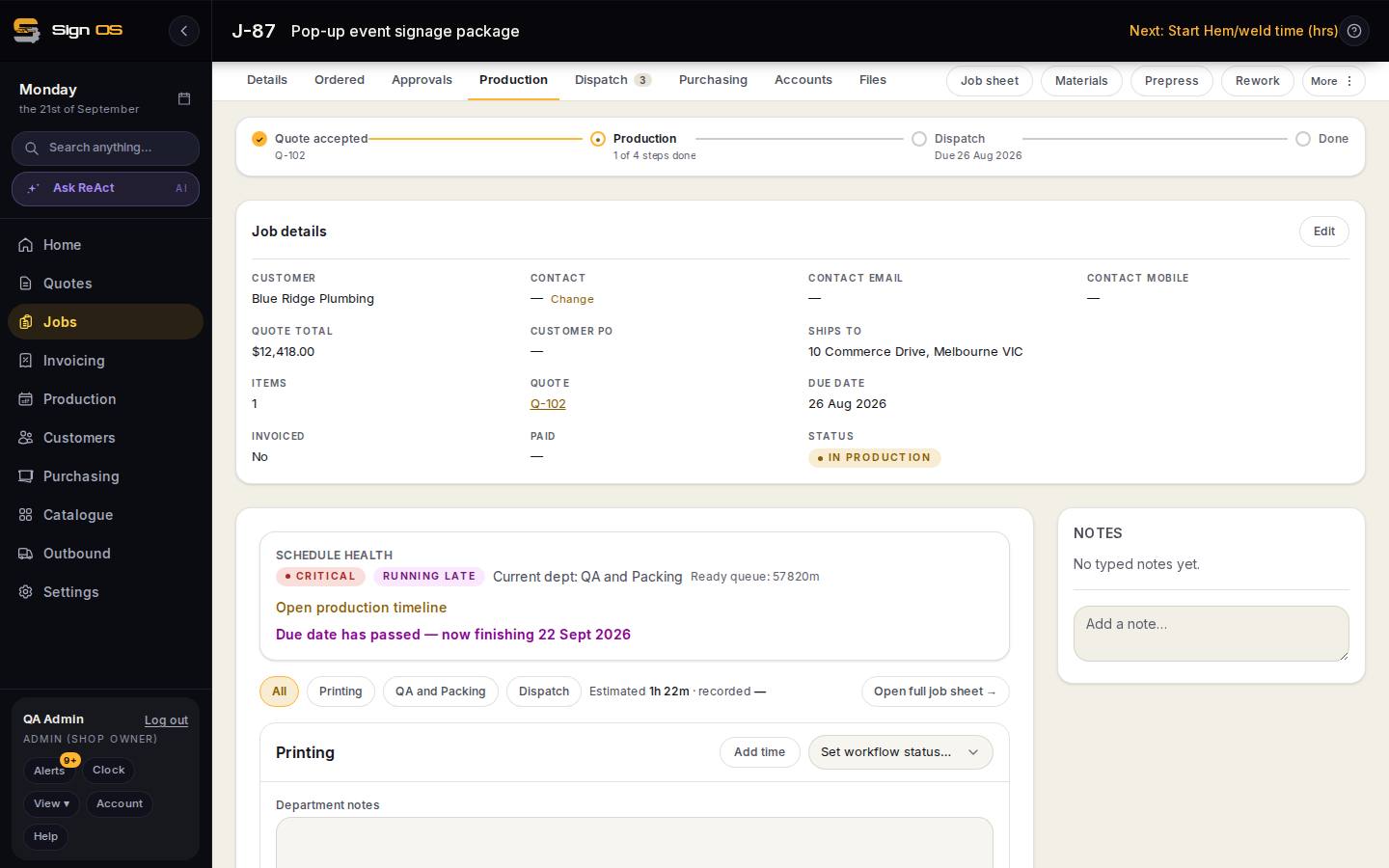
What is on this screen
Each part of the screen above, top to bottom, and what changing it affects.
Production tab
- Schedule health
- CRITICAL / AT RISK / ON TRACK, Running late, the current department, the ready queue and the date it will now finish. Open production timeline shows it in the schedule.
- Department filter · Estimated · recorded · Open full job sheet →
- All or one department; estimated hours against recorded; the printable sheet.
- Department card — Add time · Set workflow status… · Department notes · Save department note
- Record hours; move the department along by hand; notes the floor sees.
- Sign lines — NO PROOF NEEDED / proof state · Qty · hrs · Processes · Production steps
- Each sign in this department with its steps: PENDING, DONE (by whom, when) or After … for one waiting on another. Add floor note per step; steps are started and finished by scanning on the floor board.
- Client expectations (this department) · Save expectations
- What the customer cares about, printed on the job sheet.
- Step controls
- Start / finish, proof and time per step from the office.
Files tab
- Drop files here · Choose files
- Up to 2 GB per file, direct to storage with a progress bar.
- Require approval before production uses this file · Tag as
- A gate for a proof the customer must sign off; tags are Artwork, Proof, Site & reference, Final files.
Details tab
- Project summary · Project tasks · Add task
- A summary line and a checklist with due dates; seeded from your checklist templates.
- Council permits · Add permit
- Authority, reference, expiry, document.
- Correspondence · ✨ Draft an email with AI · Log correspondence
- Calls, emails and meetings logged against the job; the AI drafts the customer update.
- History — All · Edits · Production · Commercial · Correspondence
- Everything anyone did on the job, filtered.
Step by step
- 1
Open the job and its Production tab. Schedule health at the top says whether it is on track, which department it is in now, and when it will finish; Open production timeline shows it in the schedule.
- 2
Each department card lists its production steps — PENDING, DONE, or 'After …' for one that waits on another — with who finished it and when. Steps are started and finished by scanning on the floor board; Step controls at the bottom does the same from the office.
- 3
Add time on a department records hours against it; Department notes and Client expectations (this department) tell the floor what the customer cares about. Set workflow status… moves the department along by hand.
- 4
Files: drop the job's files or Choose files, up to 2 GB each, and tag them Artwork, Proof, Site & reference or Final files. Tick 'Require approval before production uses this file' for a proof the customer must sign off. With Sign OS Sync, files land here from your shop drive on their own.
- 5
Details: tick off Project tasks (add your own with a due date), track Council permits, log Correspondence — a phone call, a meeting — and read the History of everything done on the job.
Tips & gotchas
- A step marked NO PROOF NEEDED skips the approval gate. If a proof is required, production waits until the customer approves it on the Approvals tab.
- Open full job sheet → on the Production tab is the printable version of the same steps, with department notes.
- Draft an email with AI, under Correspondence, writes the customer update from what is on the job.