
Clock on, and write up a day's work
Where the floor's hours come from, and how to add the ones nobody scanned.
What this is for
Time on a job comes from the floor scanning on and off. Real days are messier than that, so time can also be written up afterwards — and it counts towards the job exactly the same way.
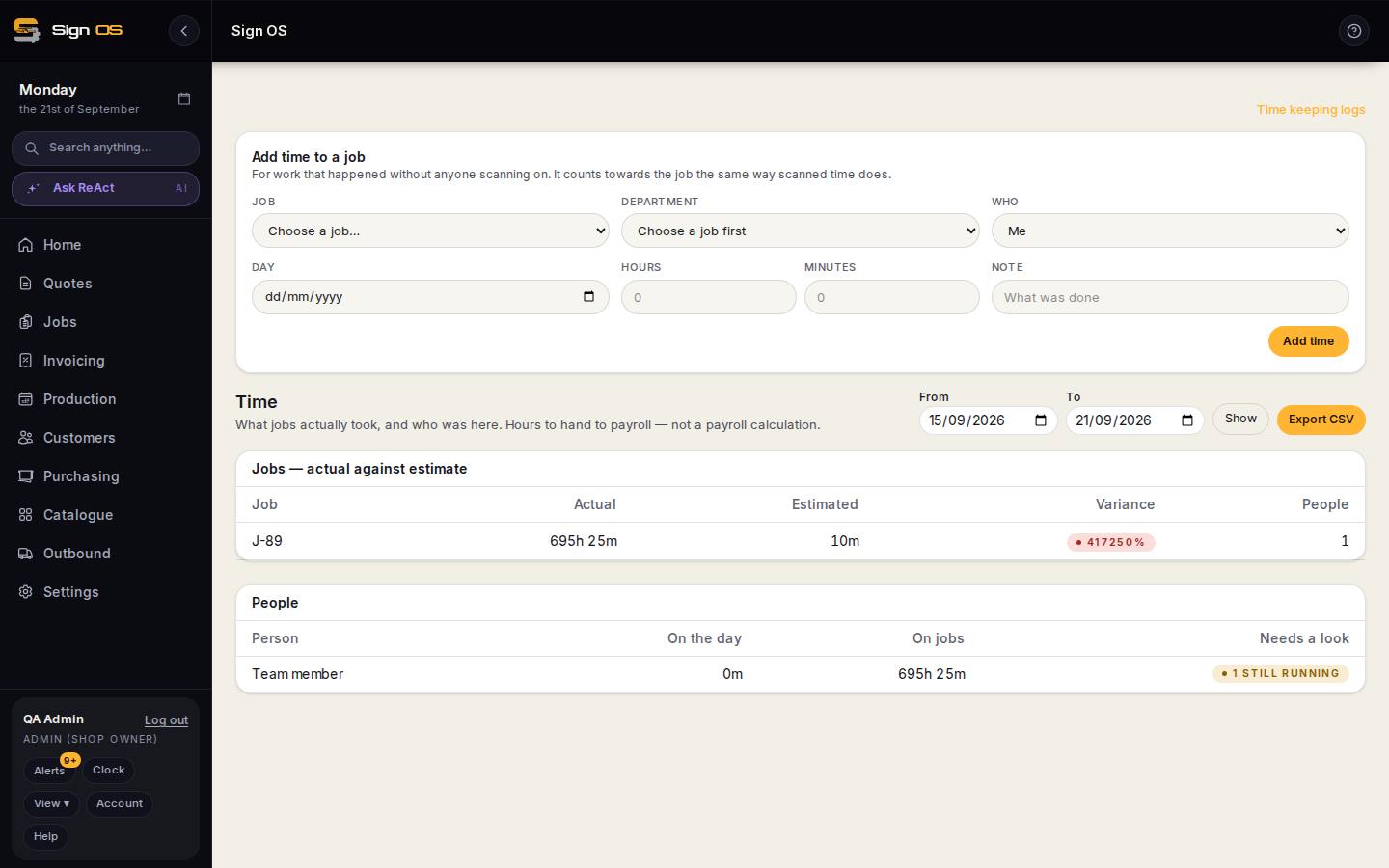
What is on this screen
Each part of the screen above, top to bottom, and what changing it affects.
- Add time to a job — Job · person · what · how long
- Time nobody scanned; counts towards the job the same as scanned time.
- The log
- Every entry by day, with the day clock's own filter. Editing records a correction rather than overwriting.
- Timesheet
- Each person's own hours, always visible to them.
Before you start
- Time keeping is a paid add-on. Check it is on for your shop under Settings → Your business → Plan & billing.
Step by step
- 1
Open Time to see the logs. The day clock has its own filter so you can look at one day at a time.
- 2
To add time nobody scanned, use 'Add time to a job', pick the job from the searchable list, and enter who did what for how long.
- 3
To write up a whole day at once, do it as a table from the production board — quicker than one entry at a time.
- 4
Correct a mistake by editing the entry. Corrections are recorded rather than overwritten.
Tips & gotchas
- Written-up time counts identically to scanned time. There is no second-class time.
- Your own hours stay your own — an ordinary staff member sees their time, not everybody else's. Only the roles you have granted it to see the whole shop's.
- Clocked time tells you what a job really took. That is the number to compare against what you quoted, and the fastest way to find a product that is priced wrong.