
Monitor job health & bottlenecks
Spot late and at-risk jobs before they become a problem.
What this is for
Job health surfaces the jobs that are slipping — behind schedule, stuck in a department, at risk of missing a deadline — so you can act early instead of finding out when the customer calls.
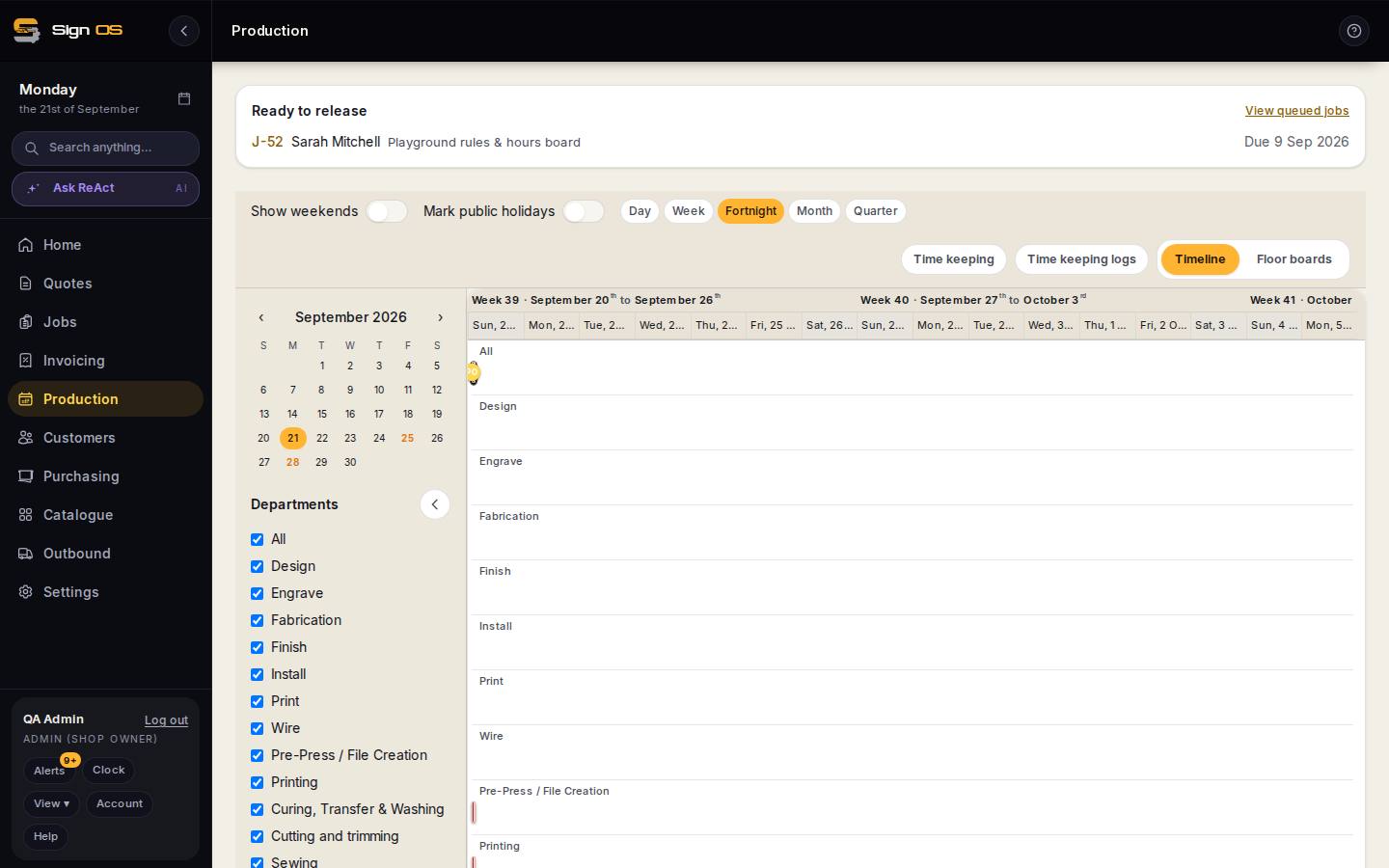
What is on this screen
Each part of the screen above, top to bottom, and what changing it affects.
- Timeline bar colour · Risk column on Jobs · Home alert strip · Notifications
- Where On track, At risk and Critical show.
- Schedule health (job Production tab)
- The state, Running late, current department, ready queue, and the new finish date.
- At-risk buffer % (Shop hours & calendar)
- The setting that decides how early a job is flagged.
Step by step
- 1
Watch the health signals — On track, At risk and Critical — on the timeline job bars and in the sidebar Alerts.
- 2
Open a flagged job and check Schedule health on its Production tab: On track, At risk or Critical, whether it is running late, the department it is in now, and the date it will now finish.
- 3
Reschedule, reprioritise or add capacity to get it back on track. The at-risk buffer that decides when a job is flagged is under Shop hours & calendar, per department under Advanced.
Tips & gotchas
- The sidebar Alerts show how many jobs are at risk — treat them as your daily catch-up list.