
Read the production timeline
Every job on the days and departments it needs, at any zoom.
What this is for
The timeline is the schedule: each released job sits across the working days and departments it needs, worked back from its due date. Read it to see where the shop is overloaded before you promise the next deadline.
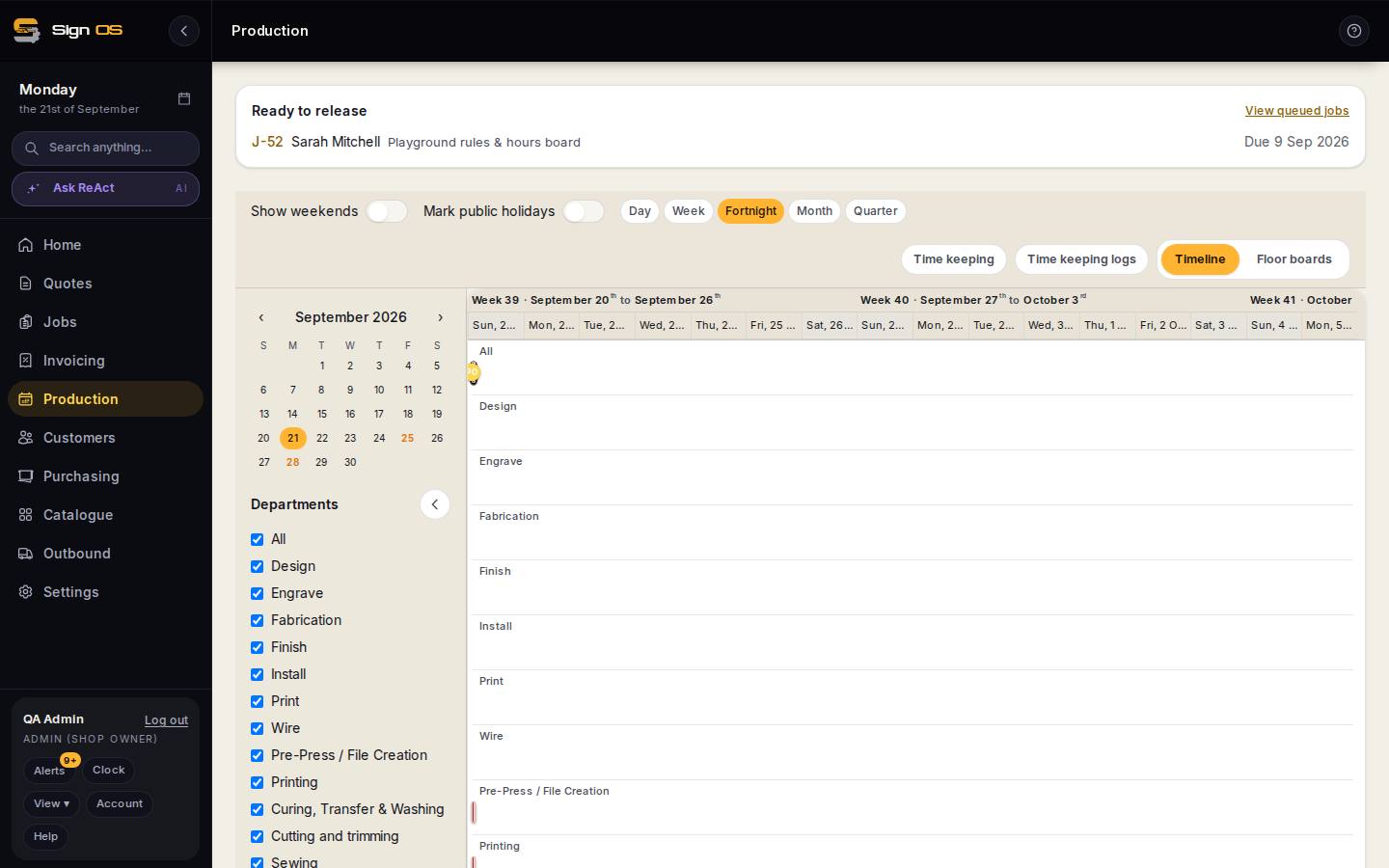
What is on this screen
Each part of the screen above, top to bottom, and what changing it affects.
- Ready to release · View queued jobs
- Accepted jobs not yet on the schedule; click one to release it.
- Show weekends · Mark public holidays
- What the grid draws.
- Day · Week · Fortnight · Month · Quarter · ‹ ›
- Zoom and step through time.
- Time keeping · Time keeping logs · Timeline · Floor boards
- The other production views.
- Mini calendar · Departments (All + each)
- Jump to a date; filter to one department's load.
- Job bars
- Each released job across the days and departments it needs, worked back from its due date; colour shows health. Click to open the job.
Step by step
- 1
Open Production in the sidebar — it lands on the Timeline. Floor boards, Time keeping and Time keeping logs are the other views along the top.
- 2
Zoom with Day, Week, Fortnight, Month or Quarter; step through time with the arrows. Show weekends and Mark public holidays change what the grid draws.
- 3
Filter by department down the left — All, or one station — to see one department's load.
- 4
Click a job bar to open the job. Ready to release at the top lists jobs accepted but not yet on the schedule.
Tips & gotchas
- A department that is always full at Month zoom is your bottleneck; the fix is capacity or outsourcing, not moving jobs.
- The schedule respects your working days, hours and public holidays from Shop hours & calendar, and closures from the Planner.