
Release a job to production
Confirm the due date and steps, and the job hits the floor.
What this is for
An accepted job is not on the floor until it is released. Release is a short wizard — due date, steps, confirm — after which the job is scheduled backwards from its due date, appears on the timeline and the department boards, and reserves any quoted stock.
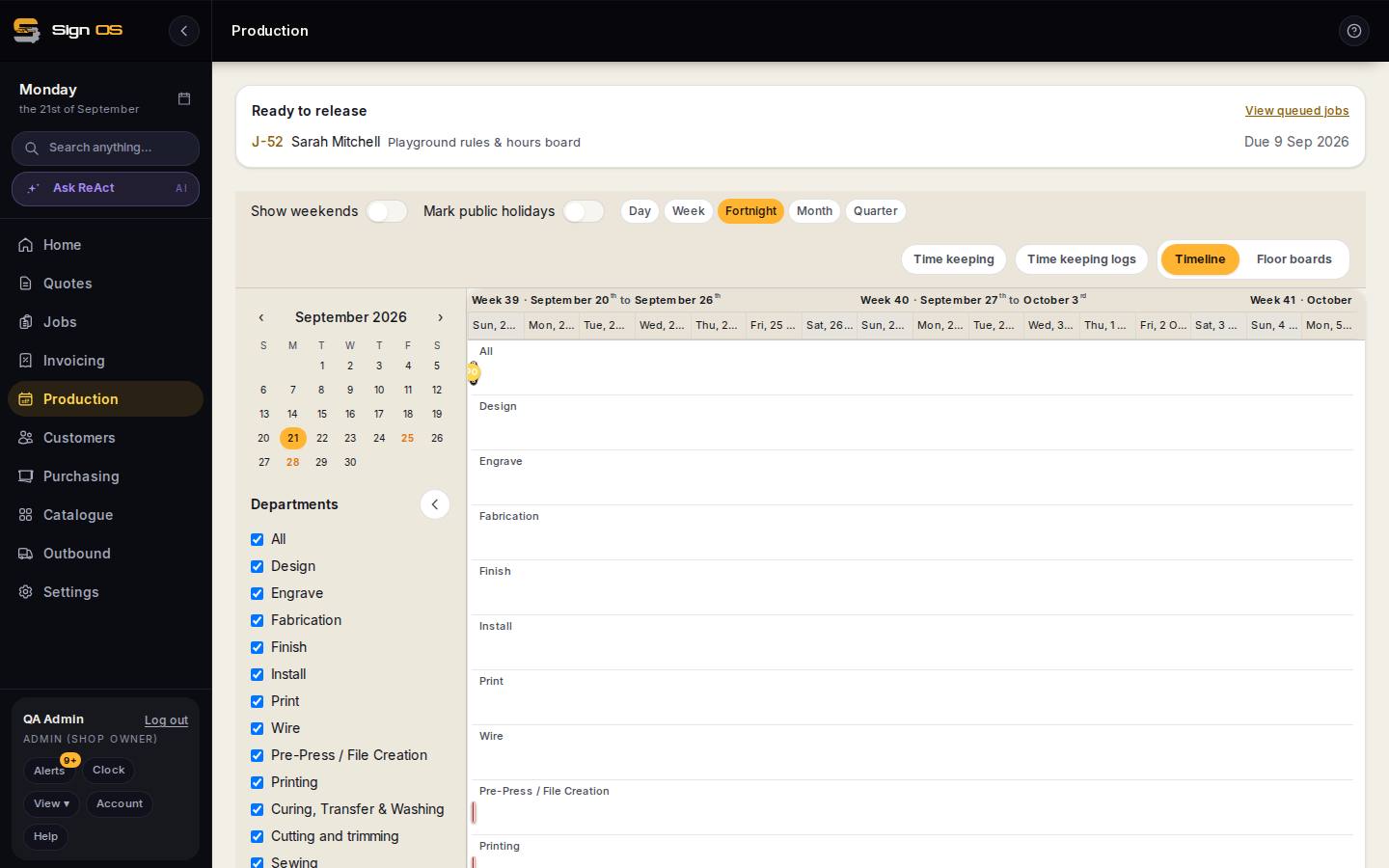
What is on this screen
Each part of the screen above, top to bottom, and what changing it affects.
Release wizard
- 1. Due date — Job · Customer · Due date · Review production steps
- Check the date scheduling works back from.
- 2. Steps — Floor steps · Stock lines · Back · Continue to confirm
- The steps the recipe produced per department and the stock that will be reserved.
- 3. Confirm — Release to production
- Job status moves to In progress; JIT scheduling recalculates working minutes from the due date backward.
- 4. Done
- Links to the job and the timeline.
Before you start
- Artwork that needs approval should be approved first; a released job with an unapproved proof waits at the gate.
Step by step
- 1
Open Production. Jobs waiting are listed under Ready to release at the top; click one, or open the job itself and press Release to production.
- 2
1 · Due date: check it. Scheduling counts working minutes back from this date, so a wrong date puts the job in the wrong week.
- 3
2 · Steps: review the floor steps the recipe produced, per department, and the stock lines that will be reserved from inventory.
- 4
3 · Confirm. The job's status moves to In progress; it appears on the timeline and the relevant floor boards. 4 · Done.
Tips & gotchas
- View queued jobs on the Production page lists everything accepted but not yet released.
- If the schedule shows the job late the moment it is released, the due date is unrealistic for the capacity you have — move the date or the capacity, not the job.