
Get artwork approved by the customer
Send a versioned proof, get it signed page by page, and gate production on it.
What this is for
The Approvals tab is where the customer signs off your artwork before anything gets made. A proof is a versioned package — v1, v2, v3 — bound to the exact file you sent. The customer reviews every page in their browser, ticks each one, and signs with a finger or a mouse. That record is what you rely on if there is ever a dispute.
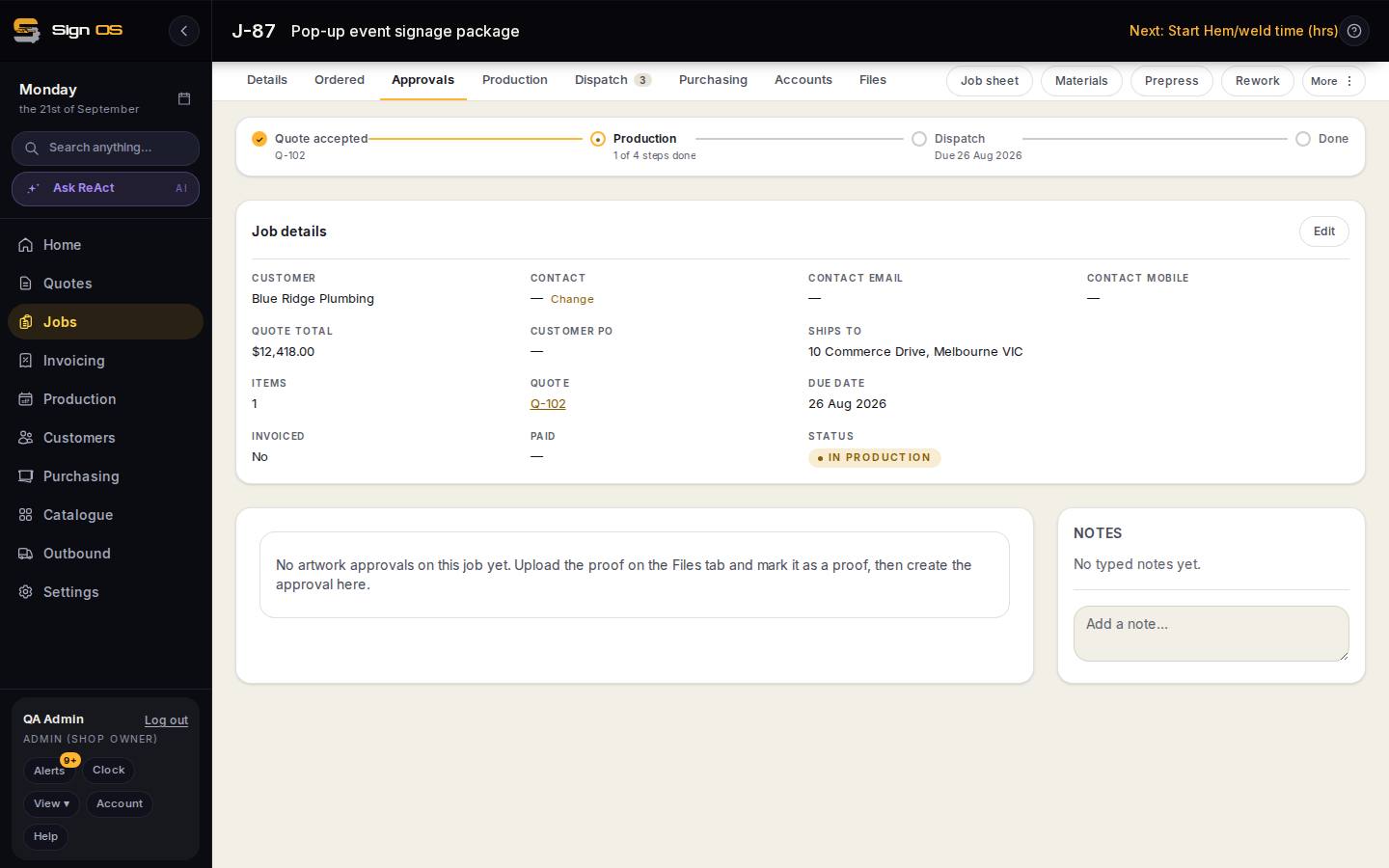
What is on this screen
Each part of the screen above, top to bottom, and what changing it affects.
Approvals tab
- Empty state
- 'Upload the proof on the Files tab and mark it as a proof, then create the approval here.'
- Create approval — file · name · who is told
- The proof file, the name the customer sees, and who in the shop hears about views, comments and decisions.
- Send for customer approval
- Enter the email; they get a link with no login. Each page has a tick and comment box plus approve-all; they Approve, Approve with changes or Reject, then sign.
- Versions
- A new version supersedes the old link; an approval on v1 never applies to v2.
Before you start
- The job exists and the proof file is ready to send.
- You have the customer's email address.
Step by step
- 1
Upload the proof on the job's Files tab and tag it Proof (tick 'Require approval before production uses this file' if production must wait for it). Then go to the Approvals tab — it sits before Production because artwork sign-off gates production.
- 2
Choose the proof file, give it a name the customer will recognise, and pick who in your shop gets told about views, comments and decisions.
- 3
Click Send for customer approval, enter the recipient's email, and send. They get a link — no portal login needed.
- 4
The customer sees each page rendered in their browser with its own tick box and comment box, plus an approve-all. They choose Approve, Approve with changes, or Reject, then sign.
Note: Approve with changes deliberately does NOT release production. Somebody has to read the notes and release it, and that decision is recorded against your name.
- 5
Changed the artwork? Send a new version. It supersedes the old link, so an approval given on v1 can never be applied to v2.
Tips & gotchas
- Decisions and comments raise the Alerts badge in the sidebar for whoever you nominated, so a proof sitting unread does not go unnoticed.
- Each version keeps its own customer trail — who opened it, when, what they said and what they signed.