
The floor boards
Each department's live queue of work, as a simple board.
What this is for
Floor boards show each department's work as cards moving through stages — a clear, glanceable queue for the people doing the work. It is the shop floor's view of what's next.
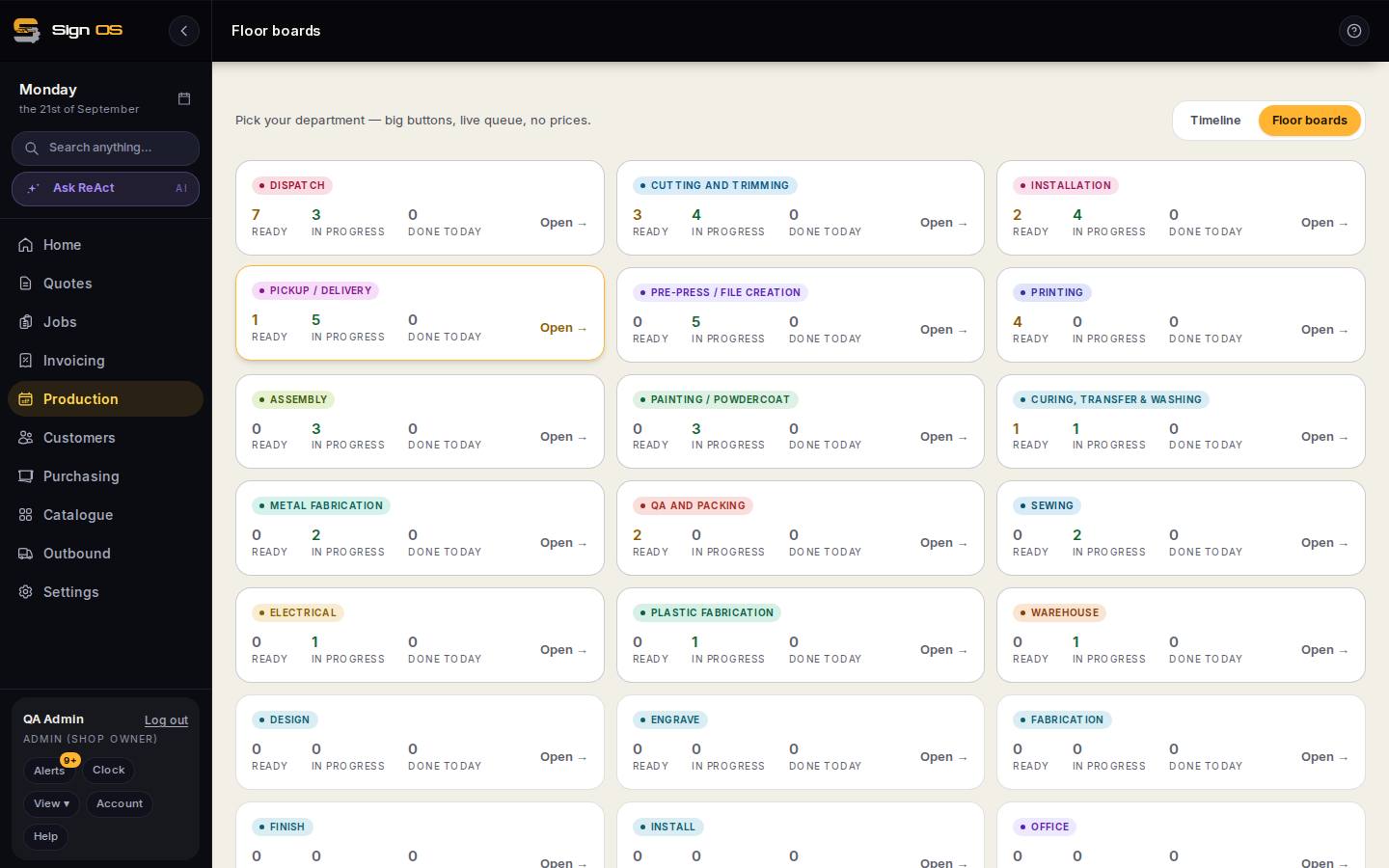
What is on this screen
Each part of the screen above, top to bottom, and what changing it affects.
Floor boards (department picker)
- Timeline · Floor boards
- Switch views.
- Department tiles — Ready · In progress · Done today · Open →
- Big buttons, live queue, no prices. Open → is that department's board.
A department board
- Backlog · Ready · In progress · Done
- Job cards move across as steps are started and finished; Urgent and Late to start flags show on cards.
Step by step
- 1
Open Production, then switch to the Floor boards tab at the top.
- 2
Pick your department to open its board.
- 3
Move a job card through its columns — Backlog, Ready, In progress, Done — as work progresses.
- 4
The job's status updates everywhere else automatically.
Tips & gotchas
- Give floor staff a role that shows them their boards and their work — not your pricing. Roles control this.