
Set your shop hours, holidays & capacity
Your time zone, working days and hours, and public holidays: the week the schedule is built on.
What this is for
The production schedule counts working minutes backwards from each job's due date, so it has to know when you work. Shop hours & calendar is the one place for your time zone, which state's public holidays to sync, the days and hours you run, and how close to its due date a job can run before it is called at risk. Follow-ups set to act only during shop hours use these hours too.
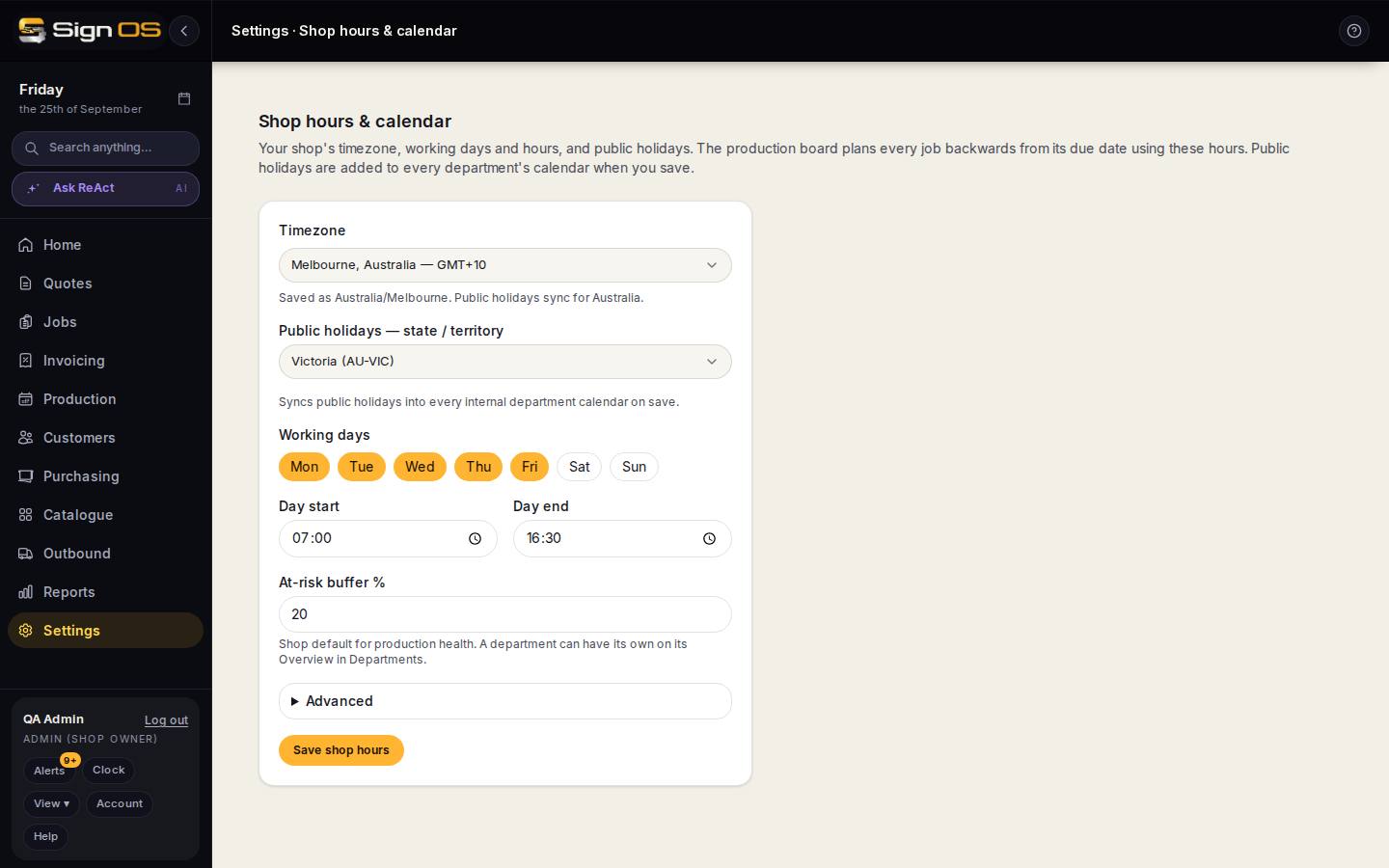
What is on this screen
Each part of the screen above, top to bottom, and what changing it affects.
Shop hours & calendar
- Timezone
- The zone the schedule, greetings, automations and dates run in. Search by city, country or GMT offset. This is the only place it is set.
- Public holidays — state / territory
- Which state's holidays sync into every internal department calendar on save. Outside Australia the national holidays are used. They appear on the Planner as one entry per department.
- Working days · Day start · Day end
- The days and hours the schedule counts as working time. A job's minutes are placed back from its due date across these hours only. Follow-ups ticked Only act during your shop hours wait for them too.
- At-risk buffer %
- How close to its due date a job can run before it is flagged At risk on the timeline, the job page and the Home alert strip. This is the shop default; a department can have its own on its Overview under Departments.
- Advanced — Hours per working day
- Different start and finish times for particular days, such as a half day on Friday. Days that match the default above are not stored.
- Save shop hours
- Saves the lot, syncs the public holidays and re-runs the schedule with the new hours.
Step by step
- 1
Go to Settings → Production → Shop hours & calendar.
- 2
Set your Timezone and pick your state or territory under Public holidays. Holidays sync into every internal department calendar on save.
- 3
Under Working days switch on the days you run, then set Day start and Day end. Open Advanced if one day runs different hours, such as an early finish on Friday.
- 4
At-risk buffer % is the shop default for production health: how close to its due date a job can run before it is flagged. A department that needs more or less slack gets its own figure on its Overview under Departments.
- 5
Save shop hours.
Tips & gotchas
- A public holiday lands as one entry per department, so a department that works the day can have its own removed. Saving here again puts a removed one back.
- Your own Planner entry types, such as Trade show or Stocktake, are made from the Kinds button on the Planner, not here.
- Until you save this page, follow-ups set to shop hours assume Monday to Friday, 8am to 6pm.