
Print the job sheet & SWMS
The floor's paperwork and the safety document for installs.
What this is for
The job sheet is the piece of paper that goes with the work: the header, every department's steps and notes, the size and quantity of each sign. The SWMS is the safe-work statement an installer carries on site. Both are built from the job, so they are never out of date with it.
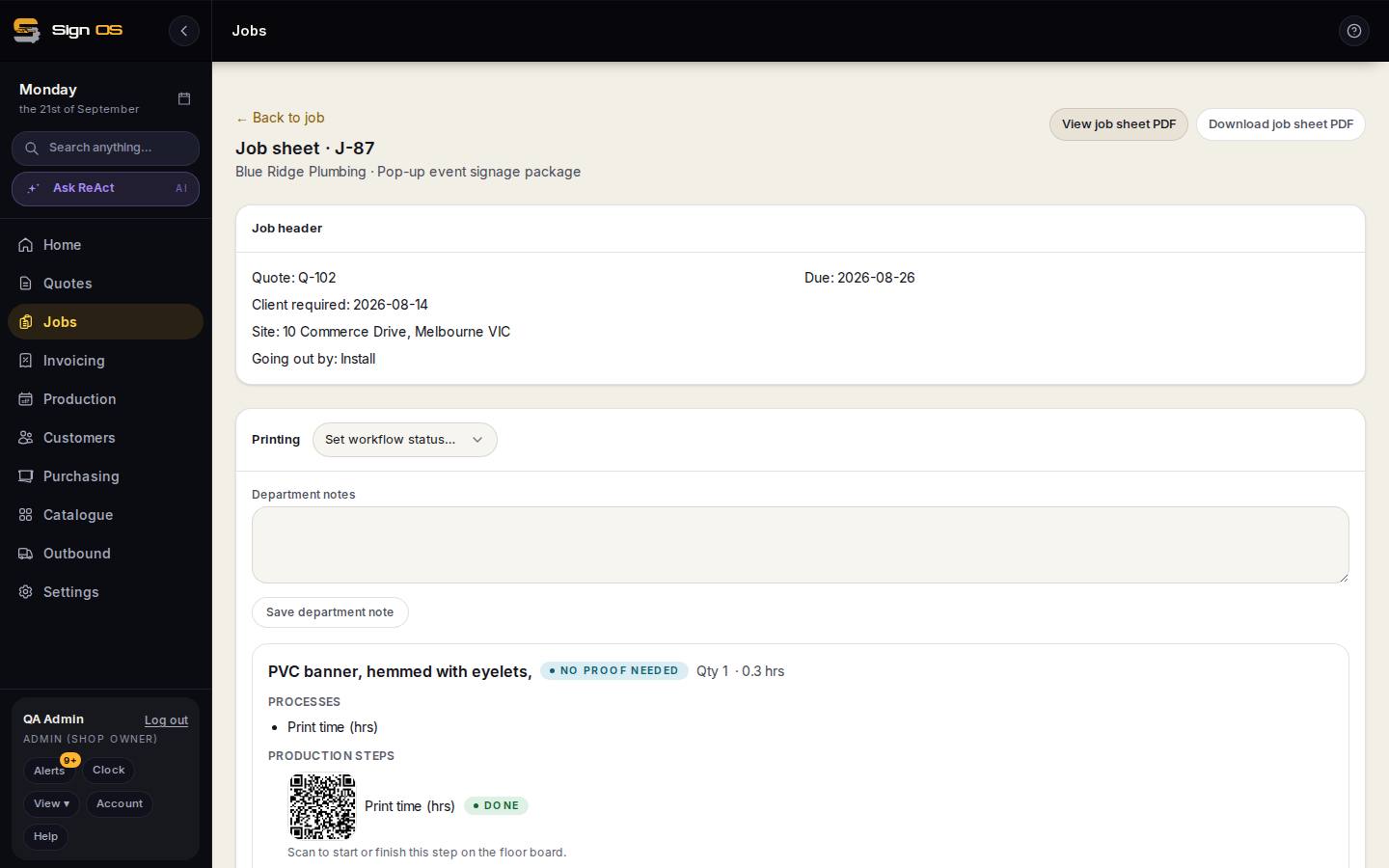
What is on this screen
Each part of the screen above, top to bottom, and what changing it affects.
Job sheet page
- ← Back to job · View job sheet PDF · Download job sheet PDF
- Return, look, or save for printing.
- Job header
- Quote, due, client required, site, going out by.
- Department sections
- Each department's steps and notes, in your shop's layout (by department or by sign).
- Open SWMS → (Dispatch tab → Site documents)
- The safe-work statement for install work, with its own PDF.
Step by step
- 1
Open the job. Job sheet is under More in the tab bar, or Open full job sheet → on the Production tab.
- 2
The job sheet page shows the job header (quote, due date, client required date, site, how it goes out) and each department's steps and notes. Department notes and client expectations saved here appear on the print.
- 3
View job sheet PDF opens it; Download job sheet PDF saves it for printing. Reprint after any change on the Ordered tab — the sheet is headed with its revision number.
- 4
For install work, open the Dispatch tab → Site documents → Open SWMS → to draft the safety document, then view or download its PDF the same way.
Tips & gotchas
- The job sheet's layout — by department or by sign — is a shop-wide setting under Settings → Production → Job sheets. Change it there, not per job.
- Storage location on a product prints on the job sheet, so the floor knows which shelf the stock is on.