
Change what a job is making
Add a sign, change how many, or take a line off a job that has already started.
What this is for
Orders change while the work is on the floor. The Ordered tab on a job shows what the customer bought and lets you change it, without touching the quote they accepted and without anybody having to remember to tell the workshop.
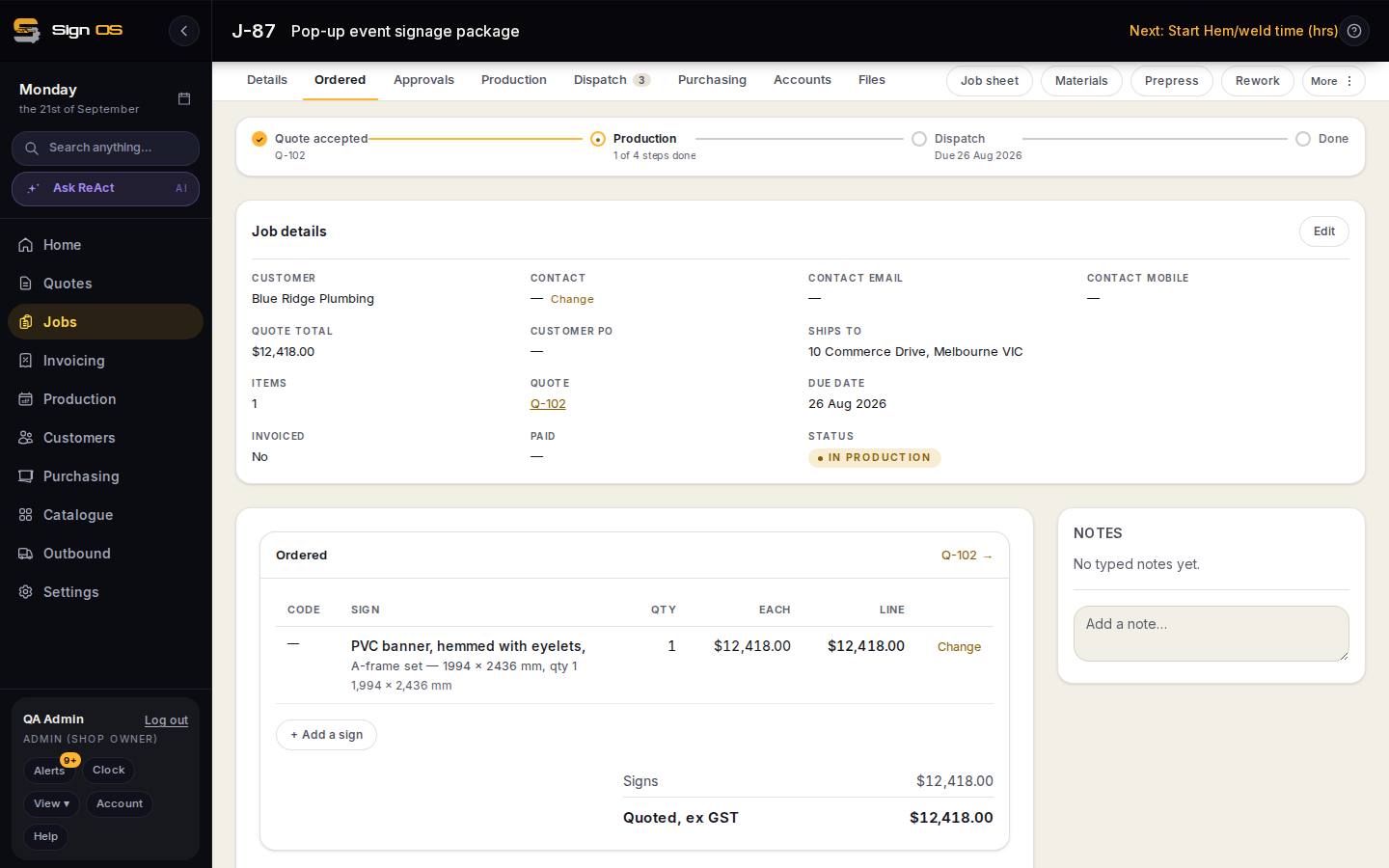
What is on this screen
Each part of the screen above, top to bottom, and what changing it affects.
Ordered tab
- Ordered · Q-… →
- Every sign on the order with code, size, quantity, price each and line total, and the link back to the quote.
- Change (on a line)
- New quantity, or Remove this line. The difference is charged at what that line already charges.
- + Add a sign
- Search, pick finish, size and quantity, Add to the job.
- Signs · Quoted, ex GST
- The running order value. A change here never rewrites the accepted quote; it is recorded on the job, reaches the floor and the job sheet, and bills on the next invoice.
- Added later · Changes since the order
- What was added after the order started, and the difference from what was accepted.
Before you start
- The job has to be still in production. A job that has gone out cannot be changed — raise a new one.
- A website order paid at the checkout cannot be changed either, because the sale is already settled.
Step by step
- 1
Open the job and go to the Ordered tab. It lists every sign on the order with its code, its size, how many, the price each and the line total, then delivery, any surcharge and the quoted total.
Note: This is the screen to read down the phone when a customer rings about their order. You no longer need to download the job card to see what was bought.
- 2
To add a sign, press + Add a sign, search for it, pick its finish, set how many and the size, and press Add to the job.
Note: A sign added this way is priced at today's catalogue price, because you are quoting it today. It gets its production steps straight away and appears on the next job sheet.
- 3
To change how many, press Change on the line, type the new number and press Save. The difference is charged at what that line already charges — not at today's price, so one sign never appears on an invoice at two prices.
- 4
To take a line off, press Change on the line, then Remove this line. Its outstanding work leaves the production board.
Note: Sign OS refuses two removals: the last line on a job, because a job with nothing on it should be cancelled instead, and a line the floor has already started, because that would throw away work somebody has done.
- 5
Print the job sheet again. It is headed Revision 2, and any sign added after the job started is marked. Destroy the old copy.
- 6
Invoice as normal. Every change is already on the job's money side, so the invoice bills it without you doing anything else.
Tips & gotchas
- The quote the customer accepted is never rewritten. That freeze is what stops a job re-pricing itself when a material cost moves while it is being made.
- Every change records who made it and when, and shows in the job's history under Changes since the order.
- To discount a changed order, adjust the invoice rather than the line — a discount belongs on the bill, where the customer can see it.