
Add a product line and price it
Pick a product, set size, quantity and choices, press Calculate.
What this is for
Most quotes are products from your catalogue. Each line is edited on its own focused screen: pick a size or a common size, a quantity, and the choices the product offers — board, finish, eyelets — then press Calculate and the price lands on the quote.
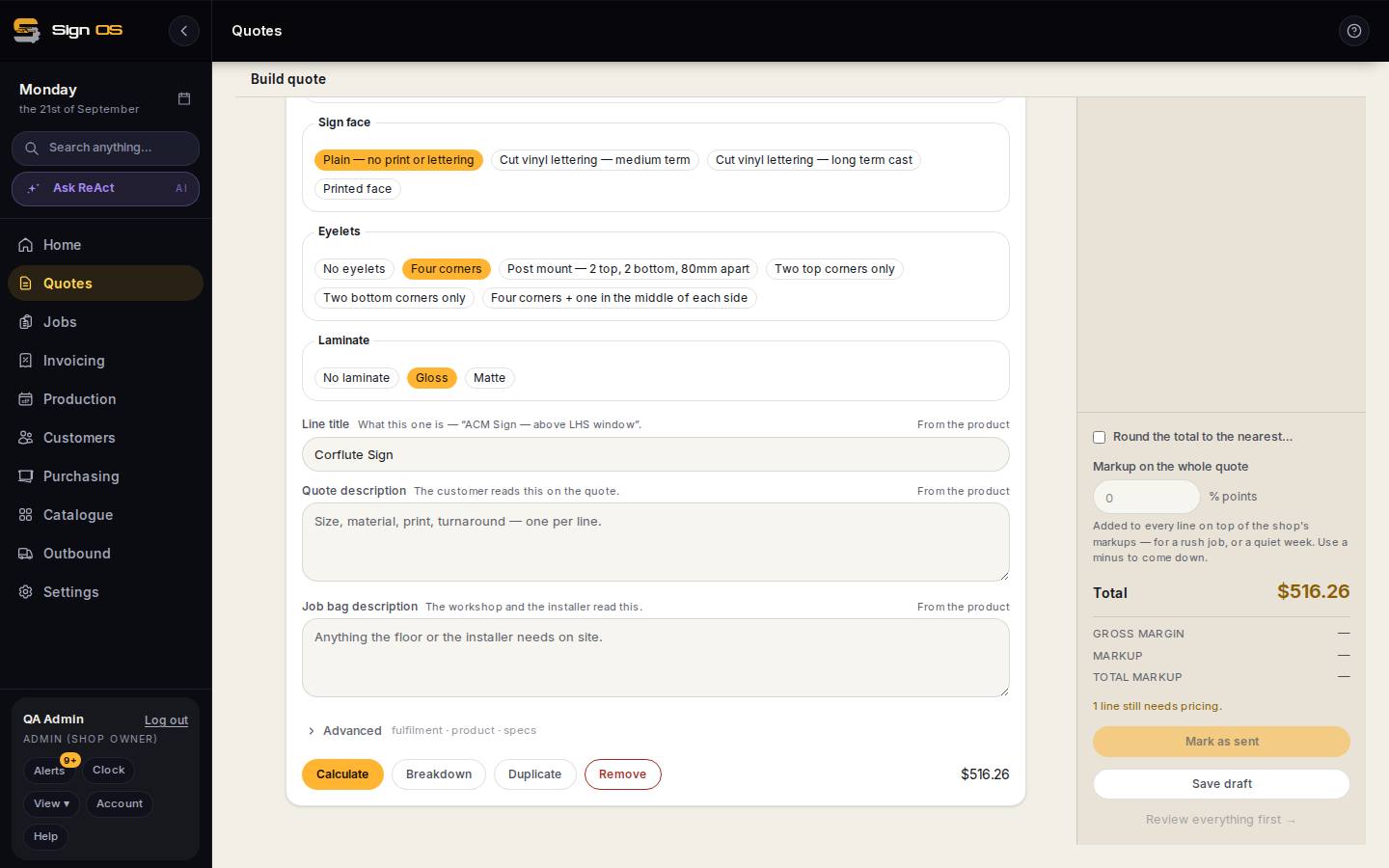
What is on this screen
Each part of the screen above, top to bottom, and what changing it affects.
The line screen
- ← Back to quote lines
- Returns to the quote with this line kept.
- NEEDS CALCULATE
- Shown until the line has been priced since its last change.
- Common size · W (mm) · L (mm) · Qty
- Pick a saved size or type one; the quantity.
- Offer other quantities
- Tick to show the customer prices at several quantities on the PDF.
- Option boxes (Board, Sign face, Eyelets, Laminate…)
- One chip per box. A chip with an Only offered when rule appears once its condition is met.
- Line title · Quote description · Job bag description
- The words for this line: what it is, what the customer reads, what the workshop reads. From the product fills them from the product's wording.
- Advanced — fulfilment · product · specs
- Line fulfilment (or Follow project), a Markup nudge in % points for this line only, product type and specs.
- Calculate · Breakdown · Duplicate · Remove
- Price the line; see where every dollar comes from; copy the line; remove it.
The price on the quote rail
- The price beside a line
- Click it to type a different one. It is the price for ONE of them, without GST.
- price typed in
- Shown under the quantity, and the price turns blue, on any line somebody has typed a price on.
- An empty box
- Clears it: the line goes back to the price the recipe works out.
Before you start
- The quote needs a customer name first; Add a line stays closed until it has one.
Step by step
- 1
Under Add a line, browse the family tiles or search, and click the product. Its line screen opens.
- 2
Set the size: pick one of the product's Common sizes, or type W and L in millimetres. Set the Qty. Tick Offer other quantities to show the customer prices at several quantities on the PDF.
- 3
Pick a chip in each option box the product carries — Board, Sign face, Eyelets, Laminate. A box starts on its default; a choice that depends on another only appears once that one is picked.
- 4
Press Calculate. The line shows NEEDS CALCULATE until you do, and the rail says how many lines still need pricing. Change anything afterwards and Calculate again. Breakdown, beside it, shows where every dollar on the line comes from.
Note: Prices do not update live while you type. Calculate is deliberate, so a half-typed size never prices the quote.
- 5
The wording is filled in from the product: Line title, the Quote description the customer reads, and the Job bag description the workshop reads. Edit any of them for this line only.
- 6
Advanced holds this line's fulfilment (or Follow project), a Markup nudge in % points for this line only, and its product type and specs. Duplicate copies the line; Back to quote lines returns to the quote.
- 7
To charge a figure of your own, click the price beside the line on the quote rail and type it. It is the price for one of them, without GST, so the line multiplies it by the quantity. The line then says price typed in under the quantity.
Note: It holds through Calculate and through a markup on the whole quote, and it is this quote only — the product's own price does not change. Empty the box to put the line back to the calculated price.
Tips & gotchas
- A common size is one click and no typing errors. Set them up under Catalogue → Common sizes.
- A typed price does not change what the line costs you, so the margin you see on it is the real one.
- The rail's Markup on the whole quote adds or takes points from every line at once — a rush job, or a quiet week. A minus comes down.
- Round the total to the nearest… tidies the grand total to a round figure without touching the lines.