
Build a product
A priced recipe of material, work and choices that anyone can quote in seconds.
What this is for
A product is a recipe written as plain sentences: what material it uses and how much, what machine runs and for how long, what labour and items go in, and which of those change when the customer picks an option. Once it is built, quoting it is picking a size, a quantity and a couple of choices — the price is the same whoever quotes it.
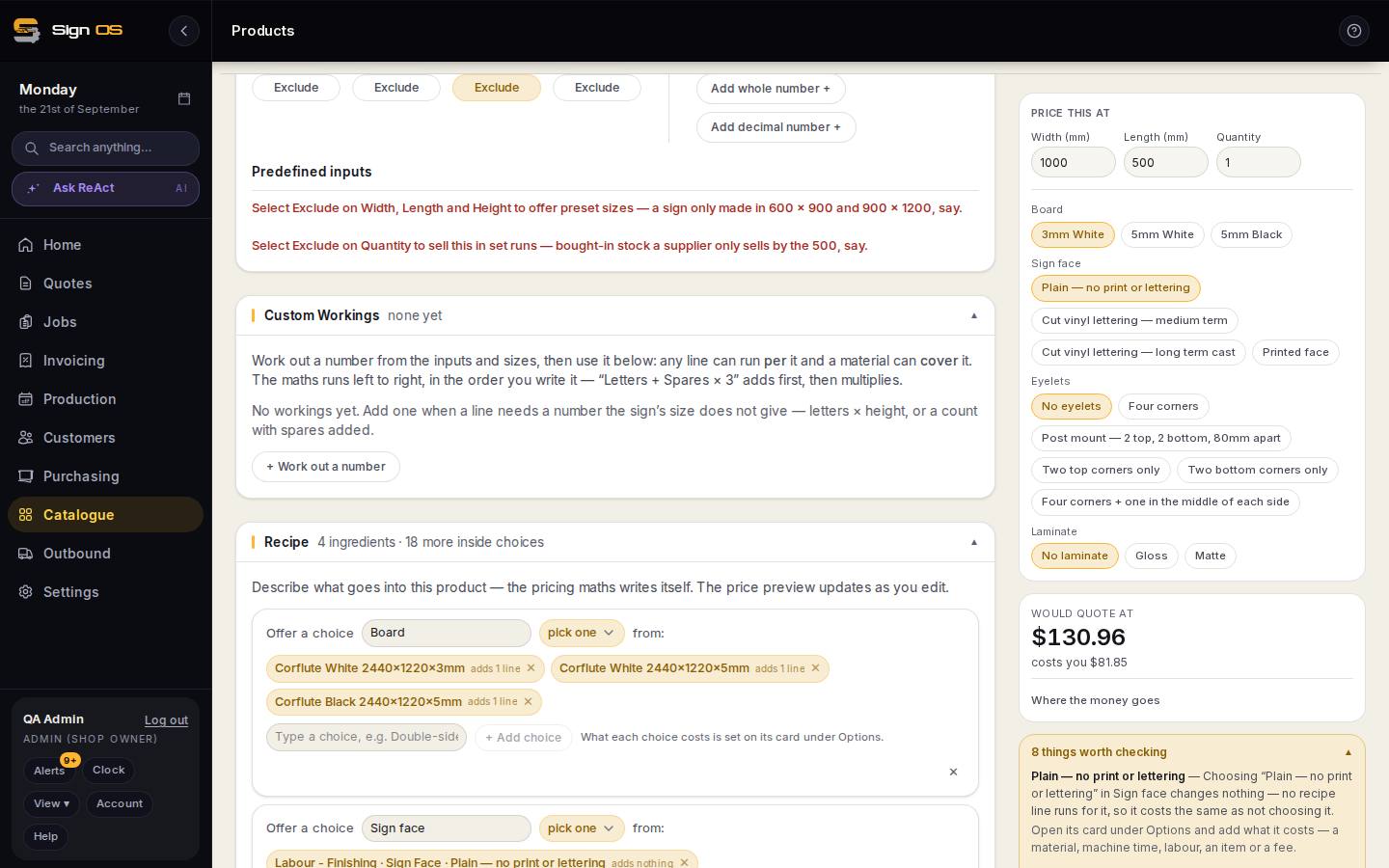
What is on this screen
Each part of the screen above, top to bottom, and what changing it affects.
Header
- ← Products · Duplicate · Delete · Save
- Save writes the whole product. Duplicate is the fastest way to make a variant. Delete is refused while quotes still reference the product.
- History
- Restores the product's details from any earlier version.
Product Info
- Sell this product on your online store
- Tick to list it on your storefront and the account portal.
- Product name · Staff description · Product code / SKU
- The name everywhere; the description shown on the product list; your own code.
- Storage location · Mould number
- Printed on the job sheet so the floor knows where the stock is (a pigeon-hole number, a mould number for a moulded sign).
- Product image — paste an address / upload
- The picture that follows the sign onto quotes, the catalogue list, the job sheet and the customer's PDF.
- Product family · Search terms
- Which tile it appears under on the Products page, and other names people call it so search finds it.
Customer and jobsheet display
- Quote description · Job bag description
- The wording on the quote PDF and, separately, on the job sheet. Insert variable drops in size, quantity and choices; Preview shows it with example values.
- Your own words
- Extra facts the wording needs that Sign OS does not already know, used as {{print_colour}}. A finish can override them on its own chip.
Inputs
- Default inputs · Custom inputs · Predefined inputs
- What the quoter is asked for — see Decide what the quoter is asked for.
Custom Workings
- + Work out a number
- Numbers the size does not give you — see Work out a number.
Recipe
- + Material · + Machine time · + Labour · + Item · + Fixed fee · + Offer a choice
- Each adds a sentence: what it uses, how much (covers the sign, per quantity, per a working), waste, minimum, scaled by. Offer a choice adds an option box.
- When this runs
- On every line once the product has a choice: always, only when one choice is picked, or one copy for each choice in a box.
- Try it · Save recipe
- Try it reprices at the sample size. Save recipe writes the ingredients only; option boxes save from their own card.
Extras · Used in this product · Options
- Extras
- Calculators attached to the product — see Let a calculator work out the hard numbers.
- Used in this product
- What the recipe uses, as a read-out; material sizes are ticked here — see Offer a material in more than one size.
- Options
- The option boxes and each chip's own lines — see Make a choice change the price.
Locked selling prices · Volume rate card
- + Lock a price
- Sell at a set market price whatever the recipe costs. The recipe still runs underneath so you can see the margin.
- Add rate card
- Price per square metre that gets cheaper as the quote's combined area grows.
Price this at (right-hand panel)
- Width · Length · Quantity · option chips
- A sample quote. Change anything and the price updates.
- Would quote at · costs you · Where the money goes
- Sell price, cost, and the breakdown by line.
- Things worth checking
- Choices that change nothing, lines that price at zero, two lines producing the same result name. Read it after every save.
Before you start
- Add the materials, items, machines and departments the product uses first, so there is something to pick from.
- Set your default margin (Settings → Money → Pricing & margin). Every product prices off it unless you lock a price.
Step by step
- 1
Open Catalogue → Products and press + New product template. Give it a name and a family, then create it. The builder is one long page of cards; open and close each with its arrow.
- 2
Product Info: the name, the staff description shown on the product list, a SKU, a Storage location (printed on the job sheet so the floor knows where the stock is), a mould number if it is a moulded sign, a product image, the family tile it sits under, and search terms — other names people call this sign.
Note: The picture follows the sign onto the quote, the catalogue list, the job sheet and the customer's PDF. Each option chip can carry its own photograph too.
- 3
Customer and jobsheet display: the wording that prints on the quote PDF and, separately, on the job sheet, with Insert variable for the size, quantity and choices. Your own words adds any extra fact the wording needs, like {{print_colour}}.
- 4
Inputs: what the person quoting is asked for. Width, Length, Height and Quantity are each Include (a box to type in) or Exclude (hand it to preset sizes or set runs). Custom inputs add a number that is not a size — Days, Installers, Depth.
- 5
Recipe: press + Material, + Machine time, + Labour, + Item, + Fixed fee or + Offer a choice and fill in the sentence. A material says what it covers and its waste; a machine says minutes per what, plus setup. The pricing maths writes itself and the preview updates as you edit.
- 6
Price this at, down the right: type a width, length and quantity and pick the option chips. Would quote at is the sell price; costs you is the cost. Change a size or a choice and watch which line moves.
Note: A sell price that looks right with a cost of $0 means an ingredient is not resolving — usually a material with no supplier price, or the wrong unit.
- 7
Read Things worth checking under the preview. It names choices that change nothing, lines that price at zero, and two lines producing the same result name so one is ignored.
- 8
Press Save recipe on the Recipe card for the ingredients, Save box on an option box, and Save at the top for the whole product.
Tips & gotchas
- Start with your bread-and-butter products. Even a handful turns most quotes into a few clicks.
- Check a product's price at a couple of real sizes before you rely on it — it is the fastest way to catch a wrong material unit or a missing step.
- Picking a material, machine or item opens on your own catalogue first, under a My shop heading. Press All at the top of the menu for the shared catalogue, or type to search either.
- Used in this product is a read-out of what the recipe uses, not a form. Using something in a line attaches it; you cannot remove something a line still depends on.
- Locked selling prices sells at a set market price whatever the recipe costs — the recipe still runs underneath so you can see the margin. Volume rate card is a per-square-metre price that gets cheaper as the quote gets bigger.
- History, on the Product Info card, restores a product's details from any earlier version.