
Price breaks and tiered square-metre pricing
Charge less per unit for a bigger run, or less per square metre for a bigger sign.
What this is for
Two different discounts, often confused. A quantity price break drops the unit price as the run gets longer. Tiered square-metre pricing drops the rate per square metre as the sign gets bigger. Both are set on the product, and both apply on their own once they are.
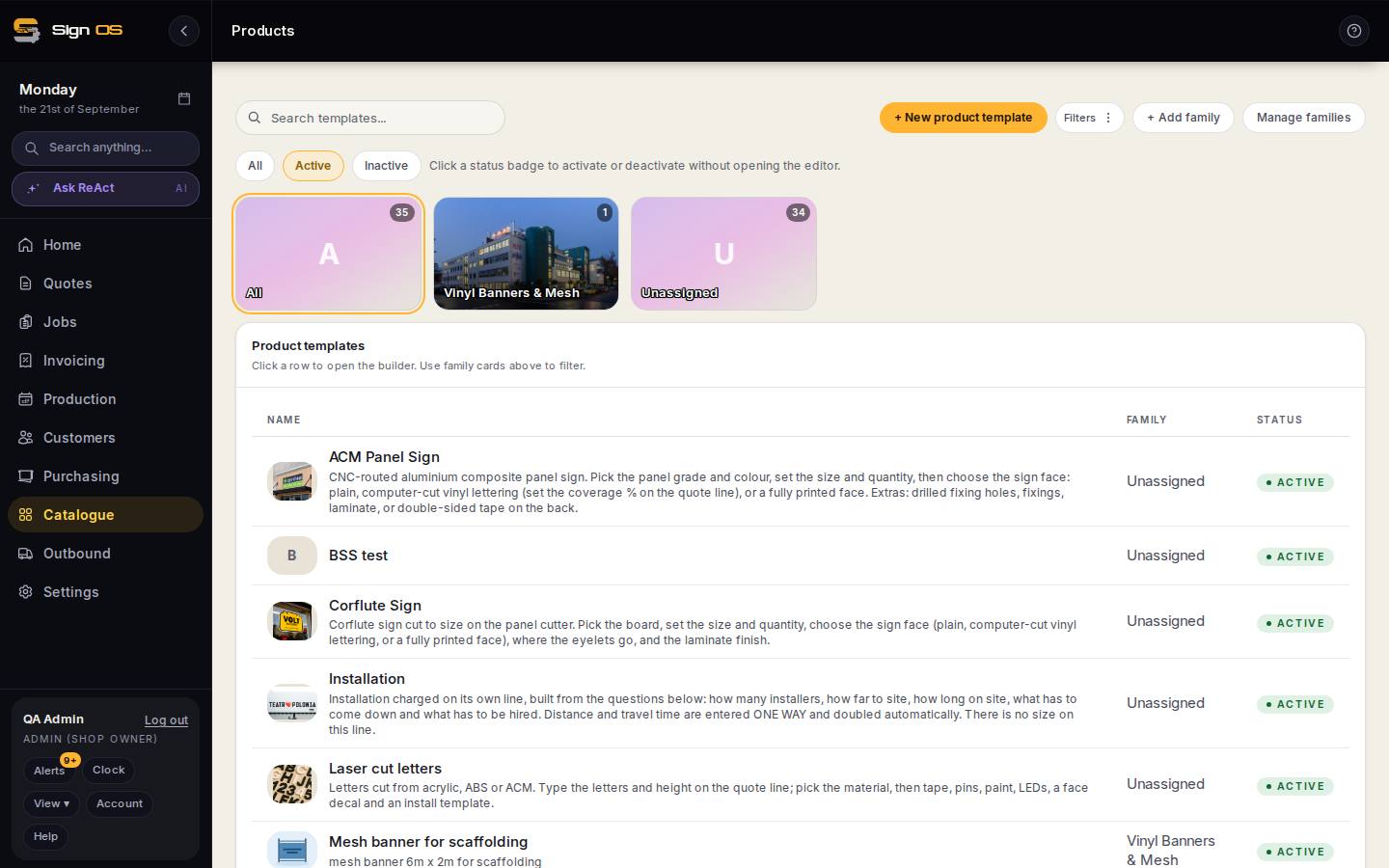
What is on this screen
Each part of the screen above, top to bottom, and what changing it affects.
- Offer other quantities (Inputs)
- Lets a quote show several quantities and their prices.
- Volume rate card (per m²) — Add rate card
- Area bands and the rate inside each; chosen from the whole quote's combined area.
- Locked selling prices — + Lock a price
- A set sell price per size or quantity regardless of the recipe's cost.
Before you start
- Have the product built, and know the real break points you sell at.
Step by step
- 1
Open the product in Catalogue → Products.
- 2
For a quantity break, tick Offer other quantities on the product's inputs and add the run lengths you actually price differently — 1, 10, 50, 250 — and the price at each. Sign OS prices the quantities in between on a curve, so an off-ladder quantity is never overcharged.
- 3
For tiered square-metre pricing, open the Volume rate card (per m²) card on the product and Add rate card: the area bands and the rate inside each. The rate is chosen from the whole quote's combined area, so a customer splitting an order across lines keeps their volume price.
- 4
To sell at a set market price whatever the recipe costs, use Locked selling prices instead — Lock a price per size or quantity. The recipe still runs underneath so you can see the margin; it just no longer decides the price.
- 5
Test it in the price preview at a size and quantity either side of a break, and check the price moves the way you expect.
Note: Only products set up as tiered pool their area together. A quote carrying a tiered product and an ordinary one does not add the two areas up to reach a better band.
- 6
Save. Every quote from now on picks the right band by itself.
Tips & gotchas
- Quantity options let one quote show several run lengths side by side — 50 against 500 — so the customer can see for themselves what ordering more is worth.
- Set break points where your cost genuinely changes: a second sheet, a second setup, a second trip. A break that does not match a real cost step is a discount you have talked yourself into.