
Set your default margin & markup
Your markup on cost, pricing groups for trade customers, and your tax and currency.
What this is for
This is the shop-wide markup Sign OS adds on top of cost to reach your selling price. Set it once and every job uses it, so nothing leaves the shop underpriced. Switch to Separated markups if you want per-item custom rates. The same page holds your pricing groups (a trade discount a customer carries onto every quote) and the currency and tax your documents show.
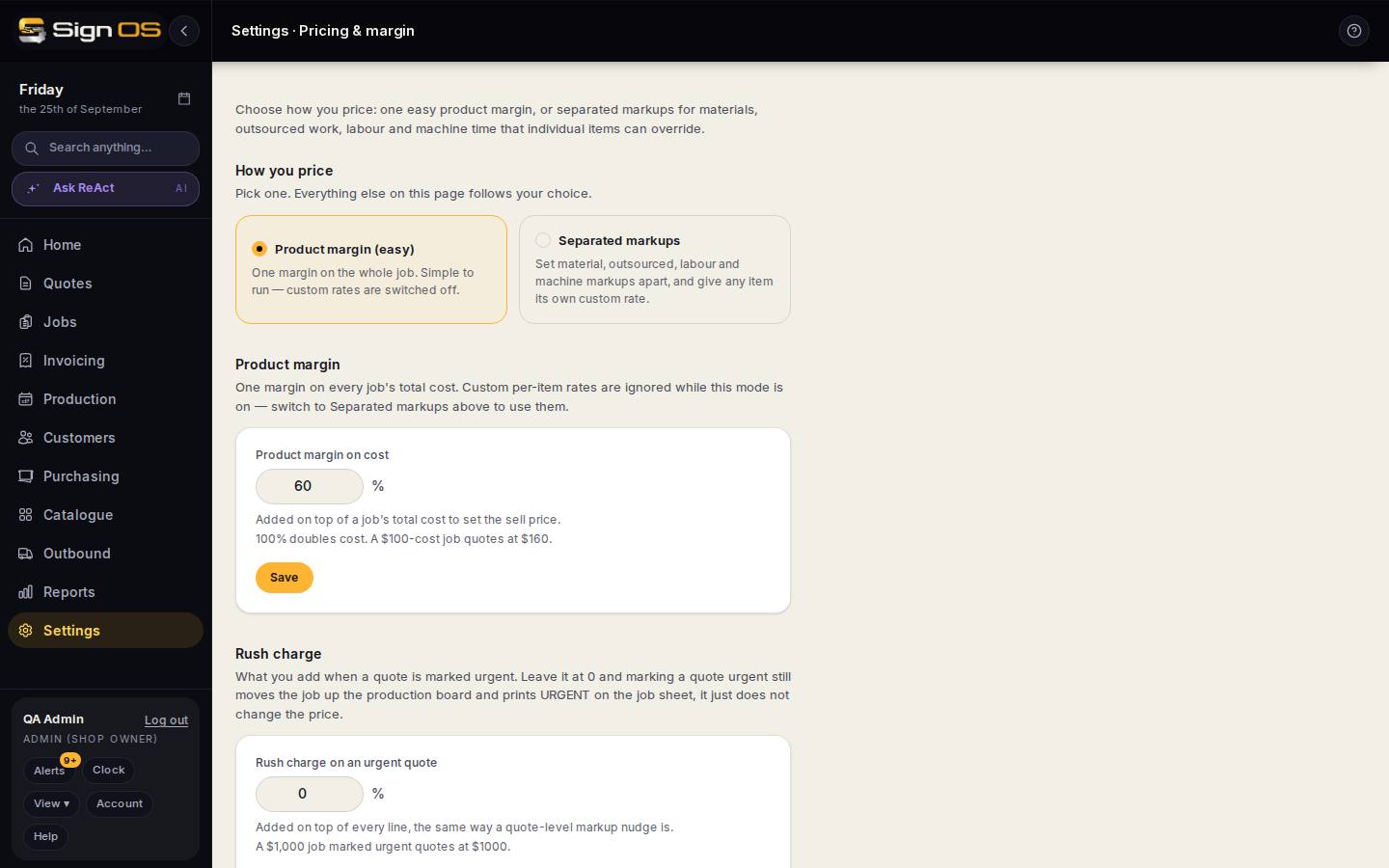
What is on this screen
Each part of the screen above, top to bottom, and what changing it affects.
How you price
- Product margin (easy)
- One margin on every job's total cost. Simple to run; custom per-item rates are switched off while this is on.
- Separated markups
- Different markups for materials, outsourced work, labour and machine time, and any item can carry its own custom rate. Pick this when a 100% markup on labour and 30% on materials is how you actually price.
Product margin
- Product margin on cost
- The percentage added on top of a job's total cost to set the sell price. 100% doubles cost; the line underneath shows what a $100-cost job quotes at. Every product without a locked price follows it.
- Save
- Changes apply to new quotes and to any quote recalculated from now on. Sent quotes keep the price they were sent at.
Rush charge
- Rush charge on an urgent quote
- A percentage added on top of every line when a quote is marked urgent, the same way a quote-level markup nudge is. At 0, marking a quote urgent still moves the job up the production board and prints URGENT on the job sheet; it just does not change the price.
Pricing groups
- + New pricing group
- A name, an Adjustment type (percentage or fixed amount) and an Adjustment value. A negative value takes money off, like Trade −10%. Set as default makes new customers start in it.
- Name · Adjustment · Default
- Your groups. Click one to rename it, change the adjustment, make it the default or delete it. A change applies to quotes priced from now on; quotes already priced keep their price.
- On the customer
- A customer's pricing group is picked on their record, and every new quote for them carries it. A product's agreed portal price for that customer wins over the group.
Tax & currency
- Currency
- The currency on quotes, invoices and purchase orders.
- Tax rate (%) · Tax label on documents
- The rate added and the words printed beside it, such as GST (10%). The tax codes Xero or MYOB need stay under Accounting.
- Save tax & currency
- Saves just these three.
Before you start
- Know the markup you want to make on standard work.
Step by step
- 1
Go to Settings → Money → Pricing & margin.
- 2
Under "How you price", choose Product margin (easy) — one margin on the whole job. (Or pick Separated markups to set material, labour and machine markups apart.)
- 3
In the "Product margin on cost" box, enter your percentage — it is added on top of a job's total cost to set the sell price — then click Save.
- 4
This is the shop default. Individual items can carry their own custom rate only when you switch to Separated markups.
- 5
Rush charge, further down, is what you add when a quote is marked urgent — a percentage on top of every line, like a quote-level markup nudge. Leave it at 0 and marking a quote urgent still moves the job up the production board and prints URGENT on the job sheet; it just does not change the price.
- 6
Pricing groups: press + New pricing group for customers who pay differently, such as Trade −10%. Pick a percentage or a fixed amount, then Create. Put a customer in the group from their record.
- 7
Tax & currency, at the bottom: check the currency, the tax rate and the label your documents print, then Save tax & currency.
Tips & gotchas
- The number here is a markup on cost, not a margin on the sell price — 100% doubles cost, so a $100-cost job quotes at $200.
- Raising this by even a few points lifts profit on every quote — change it deliberately, not per-job out of habit.
- Payment terms (how many days a customer gets to pay) are not here. They are credit terms, under Settings → Money → Quotes & invoices.