
Manage your customers
Customer records with pricing groups, terms and history.
What this is for
Customer records hold everything about who you sell to — contacts, their pricing group, payment terms, and a full account overview of what they spend and what they buy. Set a customer up well and every future quote for them starts correct.
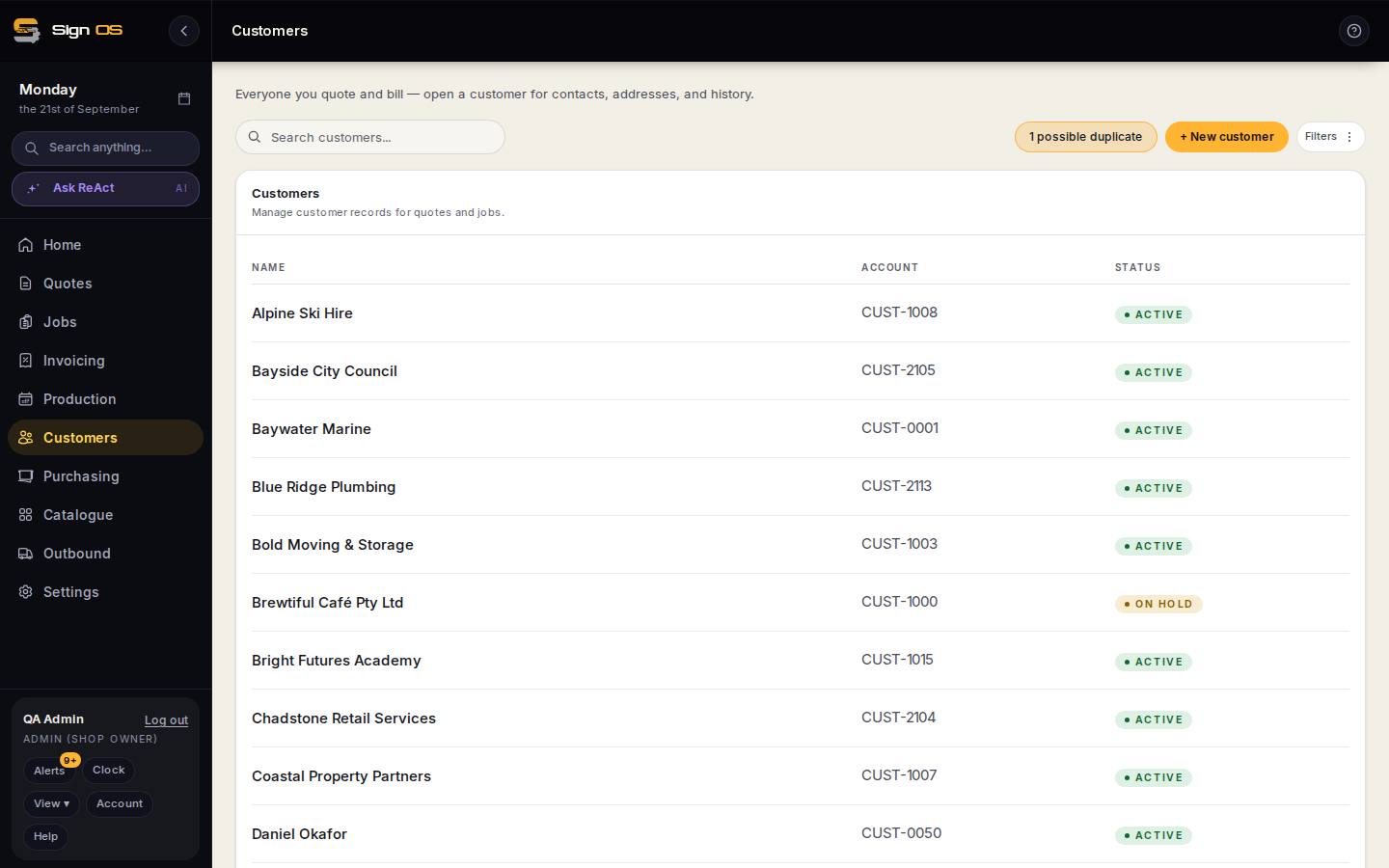
What is on this screen
Each part of the screen above, top to bottom, and what changing it affects.
Customers list
- + New customer · Filters · search
- Add one by name; filter by status, group or field.
- Possible duplicates banner
- Appears when two records look like the same customer; opens the merge tool.
- Name · Account · Status
- The CUST- number and Active or On hold. Click to open.
A customer
- Account overview — Open quotes · Awaiting payment · Jobs in production · Sales (this FY)
- The customer at a glance, with sales last year and lifetime, a 12-month chart and what they buy.
- Details — status · pricing group · credit terms · credit limit · customer fields
- Active or On hold (with the reason shown to whoever hits it), the group and term their quotes inherit, the limit credit control checks, and your four dropdowns.
- Contacts · Addresses
- Site and accounts contacts; delivery and billing addresses. Quotes pick from these.
- Standing notes
- What is always true — access, delivery, who approves. Travels onto their quotes and jobs.
- Brand kit — colours · fonts · Upload files · Save brand kit
- Their logo files and brand colours (type the code as you have it: PMS 281 C, RAL 5002, Oracal 651-070 or a hex like #e8a020; a hex shows its colour, other codes get a plain swatch), so artwork starts from the right assets. Assets can be approved, rejected and set as primary.
- Online account portal
- Their private ordering login — see Give an account customer their own ordering login.
- Quotes · Jobs · Invoices
- Their history, with status and dates.
Step by step
- 1
Open Customers from the sidebar and click + New customer.
- 2
Enter the customer name and save — this opens their detail page. If your shop has a default credit term (Settings → Money → Quotes & invoices), they start on it.
- 3
On the detail page fill in contacts and, if you use them, set a Pricing group and change the Payment terms if they need different ones, then save.
- 4
From now on their quotes inherit that pricing and those terms.
- 5
The customer page opens on their account overview: open quotes, money awaiting payment, jobs in production, sales this financial year, last year and lifetime, a 12-month sales chart, what they buy ranked by spend, and your win rate with them. Below that, tabs for their quotes, jobs and invoices.
Note: Sales are counted the same way the dashboard counts them — accepted quotes, against your shop's financial year — so the two figures agree.
Tips & gotchas
- Set the pricing group and payment terms on the customer, not the quote — it saves setting them every single time.
- Repeat order? Open the quote or job they want again and use Copy to new quote (on a job it is under More). You get a fresh draft with the same lines and prices, ready to edit — the original is untouched.
- Load a lot of customers at once with Bulk import.