
Review & send the quote
Check the totals and margin, then email the PDF from the quote.
What this is for
Review is the last look before the customer sees it: every line's sell price, the subtotal and total, your gross margin and markup, and any warnings — a line not yet calculated, dates or fulfilment not set. Sending happens from the quote page with Email PDF, which shows you the address before it goes and marks the quote sent once it has.
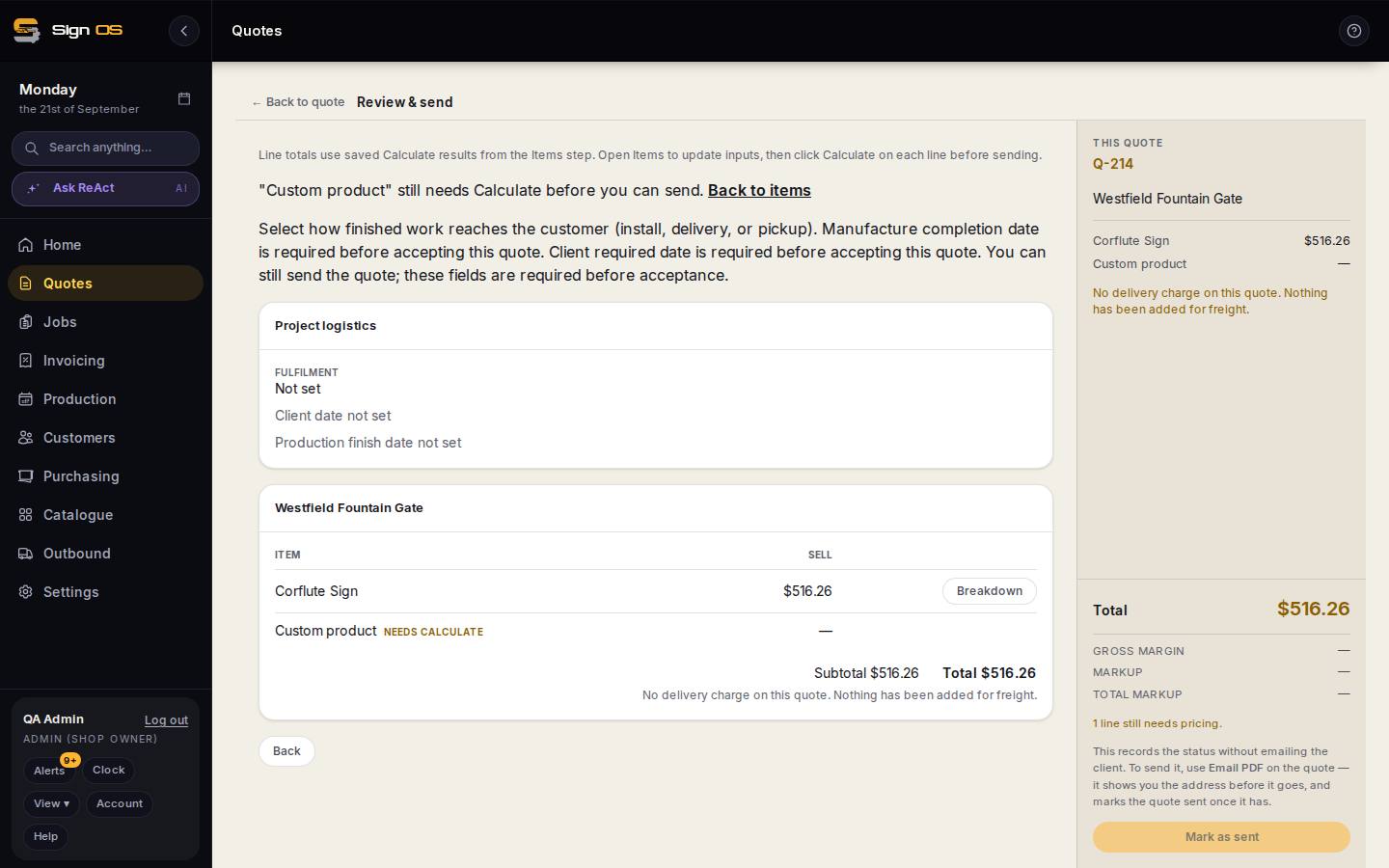
What is on this screen
Each part of the screen above, top to bottom, and what changing it affects.
Review & send
- Warnings
- A line still needing pricing must be calculated; missing fulfilment or dates can wait until acceptance.
- Project logistics
- Fulfilment, client date and production finish date as set.
- Item · Sell · Breakdown · Subtotal · Total
- Every line's sell price with a breakdown, and whether a delivery line was added.
- Mark as sent
- Records the status without emailing anyone.
The quote page
- Status strip — Draft · Sent · Decision
- Where the quote is.
- Open quote builder · View quote PDF · Download quote PDF · Email PDF
- Edit, look, save, or send — Email PDF shows the address before it goes and marks the quote sent.
- Edit quote · Mark as sent · Accept and make job · Copy to new quote · Delete
- The lifecycle buttons.
- Customer · lines · totals · Pricing
- The customer, each line's costed parts, cost subtotal, project total, margin, and advice from your own decided quotes.
- Files · Correspondence
- Files on the quote (tagged Artwork, Proof, Site & reference, Final files) and logged calls and emails.
Step by step
- 1
Press Review everything first → in the rail. Every line is listed with its sell price and a Breakdown link showing where the money goes.
- 2
Read the warnings at the top. A line that still needs pricing must be calculated before sending. Missing dates or fulfilment can wait — you can send, but they are required before acceptance.
- 3
Check the rail: Total, Gross margin, Markup and Total markup. If the margin is thin, Markup on the whole quote adds points to every line; a minus comes down.
- 4
Open the quote page (Save draft, then open it from the list, or Back to quote → the Q number). View quote PDF shows what the customer will get; Edit quote reopens the builder.
- 5
Press Email PDF. Check the address it shows, add a note, send. The quote is marked SENT once it has gone.
- 6
If the quote went out another way — printed, or attached to your own email — use Mark as sent so the pipeline is right. It records the status without emailing anyone.
Tips & gotchas
- Send from Sign OS rather than attaching the PDF yourself: the Sent emails tab under Settings → Connections → Email then tells you whether it was delivered, and follow-ups can run off it.
- The Pricing panel on the quote page compares this quote to your own decided quotes for the same product — advice only, nothing changes the price.
- Copy to new quote on the quote page is how you re-quote a customer who came back with changes.