
Turn an accepted quote into a job
The customer said yes: one press makes the job.
What this is for
When the customer says yes, accept the quote and it becomes a job. Everything carries over — the lines, the pricing, the customer, the dates and fulfilment — so nothing is re-typed and the job is ready for production.
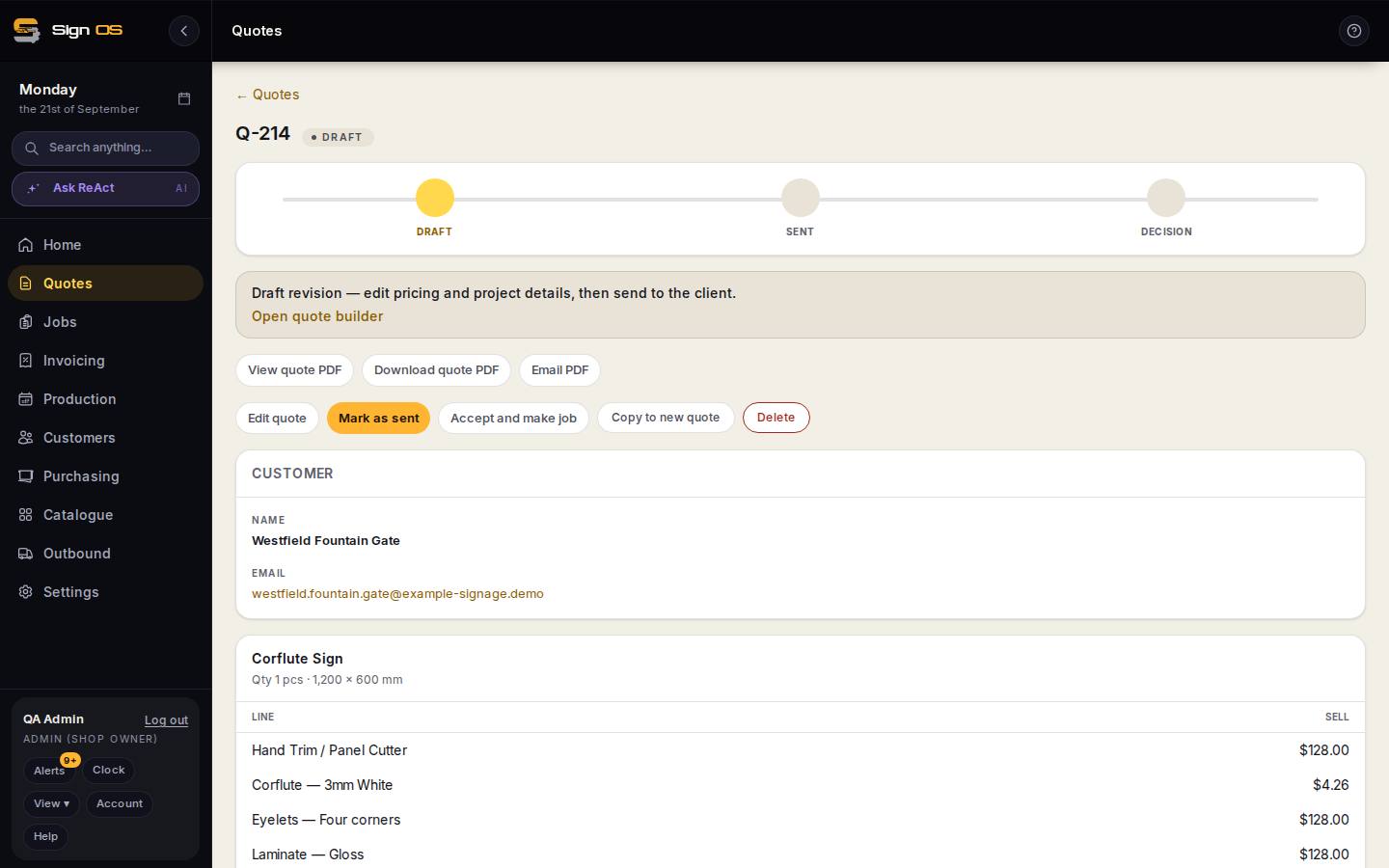
What is on this screen
Each part of the screen above, top to bottom, and what changing it affects.
- Accept and make job
- On the quote page. Asks for dates and fulfilment if missing, then creates the job and opens it.
- ACCEPTED · View job
- The quote's status after, and the link to the job.
- Copy to new quote
- For a revised price after acceptance — never edit the accepted quote.
Before you start
- The quote needs its Client needs it by and Finish production by dates and a fulfilment set. Sign OS asks for them at acceptance if they are missing.
Step by step
- 1
Open the quote from the Quotes list.
- 2
Press Accept and make job, and confirm. If the dates or fulfilment are missing, fill them in when asked — the job's schedule is built from them.
- 3
You land on the new job. The quote shows ACCEPTED and links to the job; the job's Accounts tab carries the quoted prices for invoicing.
- 4
If the customer accepted a quote you had already marked accepted by mistake, or accepts a revised price, use Copy to new quote for the revision rather than editing the accepted one.
Tips & gotchas
- Accept as soon as it is won — the job then shows up for scheduling and the floor without any extra data entry.
- A customer can also accept from the emailed quote if your templates include the accept link; the job is made the same way.