
The jobs list & a job at a glance
Every job from acceptance to dispatch, and how a job page is laid out.
What this is for
A job is an accepted quote being made. The Jobs list is everything in production and beyond, with the columns that matter at a glance: due date, whether it is at risk, whether it has been invoiced and paid. Open a job and everything about it is on one page, split into tabs so the floor, the office and accounts each find their part.
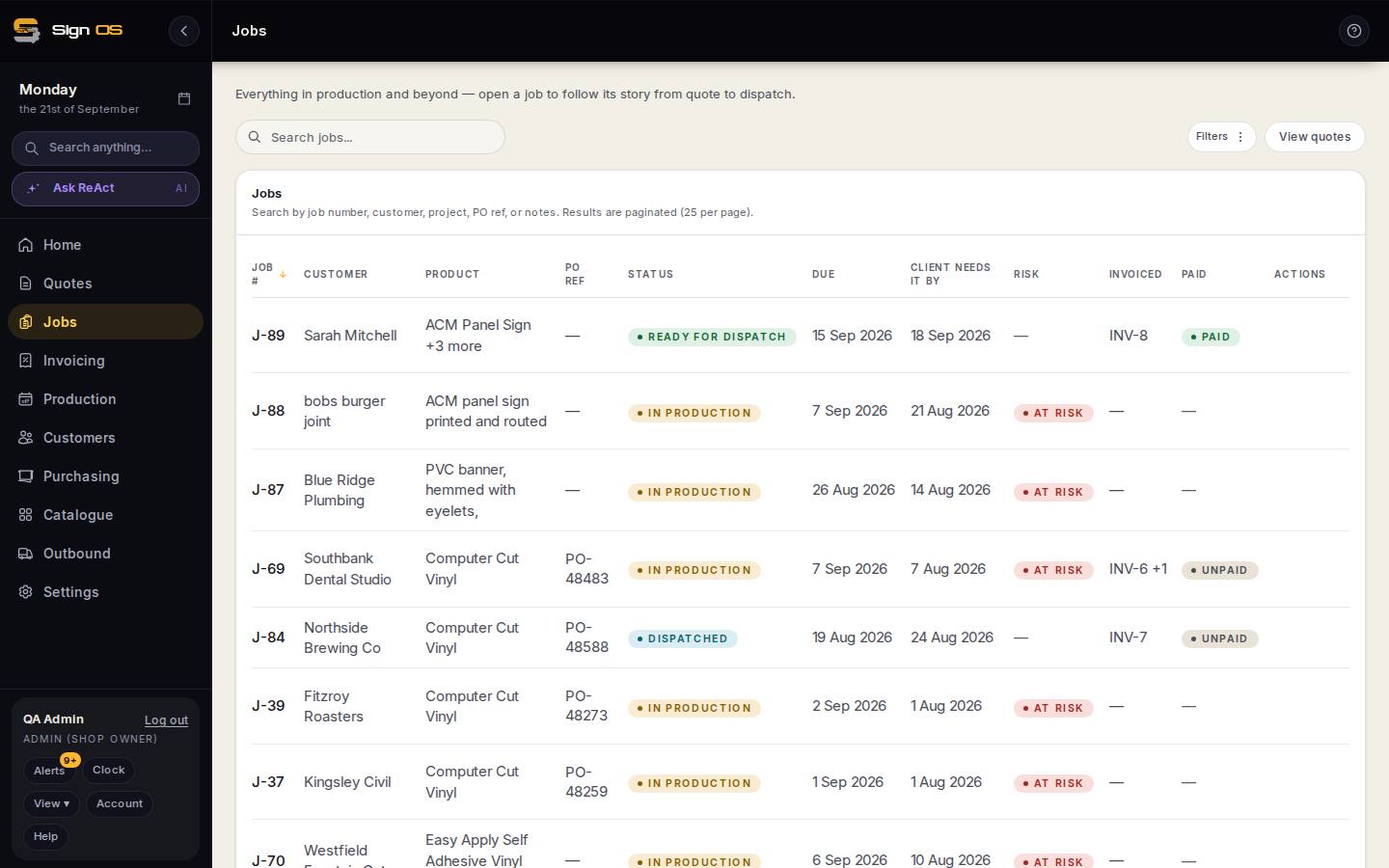
What is on this screen
Each part of the screen above, top to bottom, and what changing it affects.
Jobs list
- Search · Filters · View quotes
- Search by job number, customer, project, PO ref or notes; Filters by status, department or date.
- Job # · Customer · Product · PO ref · Status · Due · Client needs it by · Risk · Invoiced · Paid
- Sortable columns. Risk is AT RISK when the schedule says it will be late; Invoiced shows the INV number; Paid the payment state. Which columns show is set under Appearance → Lists and screens.
- Dispatch · Invoice
- Row actions straight to the Outbound docket and the invoice page.
A job page
- Status strip
- Quote accepted (with the Q number) → Production (steps done of total) → Dispatch (due date) → Done.
- Job details card — Edit · Change
- Customer, Contact (Change swaps it for this job), contact email and mobile, Quote total, Customer PO, Ships to, Items, Quote, Due date, Invoiced, Paid, Status. Edit opens the header for the PO, ship-to, due date, project name and status.
- Margin → · Fulfilment →
- Quick links to the money and the dispatch side.
- Tab bar
- Details, Ordered, Approvals, Production, Dispatch, Purchasing, Accounts, Files, Job sheet, Materials, Prepress, Rework; More on a narrow screen.
- Notes
- Typed notes that stay with the job, on every tab.
Step by step
- 1
Open Jobs in the sidebar. Search by job number, customer, project, PO reference or notes; Filters narrows by status, department or date. Dispatch and Invoice on a row jump straight to those.
- 2
Read the columns: Status (in production, ready for dispatch, dispatched, completed), Due, Client needs it by, Risk (AT RISK when the schedule says it will be late), Invoiced and Paid.
- 3
Open a job. The strip at the top tells its story — quote accepted, production (steps done of total), dispatch, done — and the Job details card carries the customer, contact, quote total, customer PO, ship-to, due date, invoiced and paid state. Edit changes the header; Change swaps the contact for this job.
- 4
The tabs: Details (summary, project tasks, permits, correspondence, history), Ordered (what they bought), Approvals (artwork sign-off), Production (departments and steps), Dispatch (how it goes out, SWMS, manifest), Purchasing (materials and POs), Accounts (money) and Files, then Job sheet, Materials, Prepress and Rework. On a narrow screen the last few sit under More.
Tips & gotchas
- Every tab has the Notes box at the bottom. Typed notes stay with the job for good; the History on Details records everything anyone did.
- The job opens on the tab your shop chose under Settings → Team → Screens, so a production shop can land on Production every time.