
Send quotes from your own email address
Your customers see your business in their inbox, not ours.
What this is for
By default, quotes and invoices leave Sign OS from a Sign OS address. With your own email domain they leave from noreply@yourdomain, with your shop's name on them — better for your brand, and far better for whether the mail lands in an inbox at all.
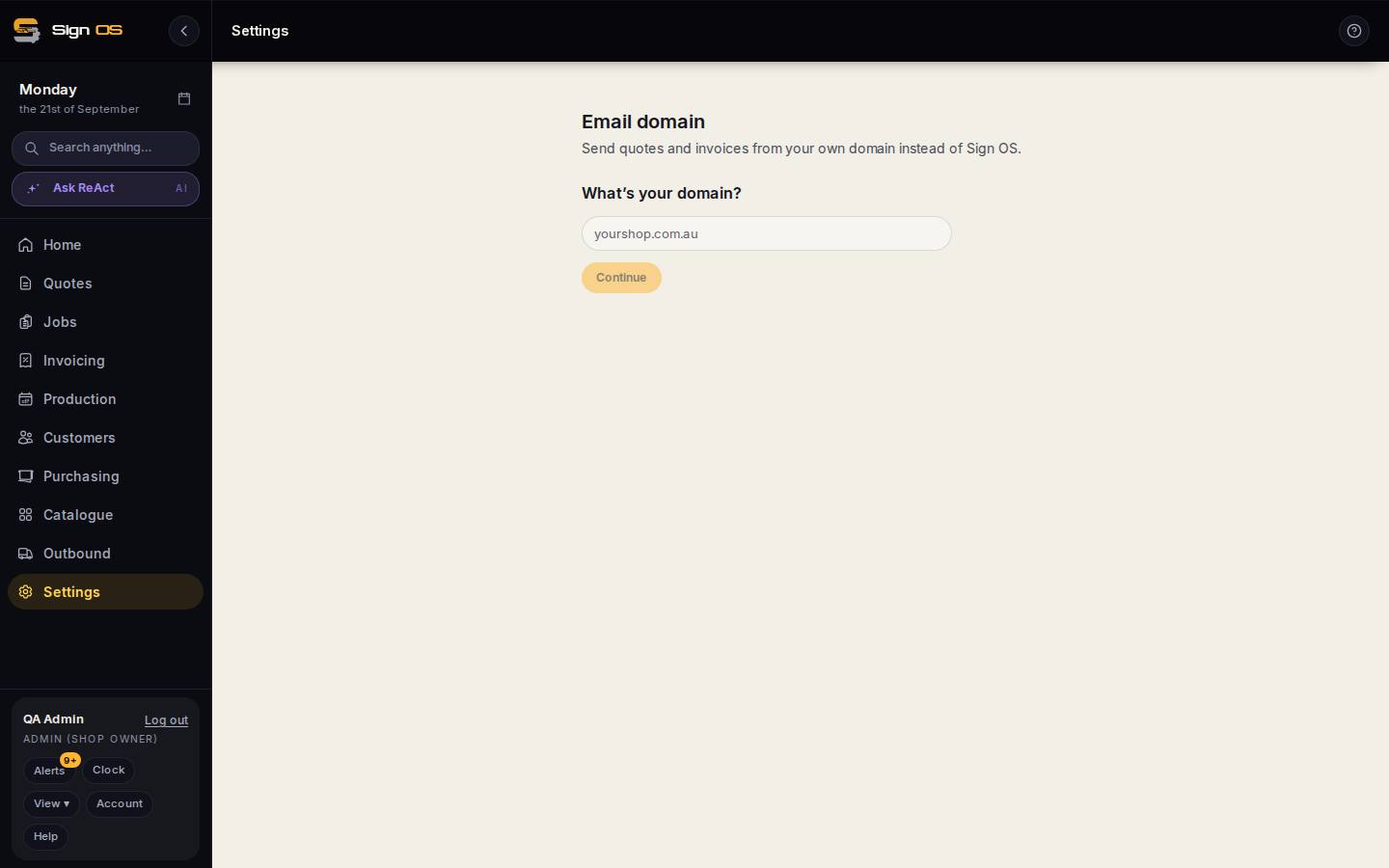
What is on this screen
Each part of the screen above, top to bottom, and what changing it affects.
- What's your domain?
- The part after the @ in your business email. Continue checks it is a real domain you can use. It must be one you already send mail from — a brand-new domain has no reputation.
- Where should replies go?
- Mail goes out from noreply@ your domain, so this is the address a customer lands on when they hit reply. Sign OS emails it a link to confirm it is yours.
- Check this is right
- The summary before anything is created.
- Add these records
- The DNS records (usually three or four) to add at your domain host. Nothing sends from your domain until they are live; until then mail keeps going out the old way rather than failing.
- Not the person who edits the DNS?
- Enter your web person's email and Sign OS sends them the records with instructions, or ask for setup help.
- Your DNS records · Check
- Once set up: the records that have to stay in your DNS, and the button that re-checks them. Verified is when mail starts leaving from your domain.
- Sender name · Where replies go
- Changeable any time without redoing the DNS. Sender name is what the customer sees before the address.
- Test email
- Sends you a message from the new address so you can see what a customer will see.
- What still comes from Sign OS
- Password resets, billing receipts and anything about your Sign OS account keep coming from Sign OS. Only mail to your customers changes.
- Start again
- Clears this attempt to set up a different domain.
Before you start
- This is a paid add-on. Add it under Plan & billing first; the Email domain screen tells you if it is missing.
- You will need someone who can add DNS records for your domain — usually whoever looks after your website. If that is not you, the screen can email them the records.
Step by step
- 1
Open Settings → Connections → Email domain.
- 2
Type your domain — the part after the @ in your business email, like yourshop.com.au — and click Continue. Sign OS makes sure it is a real domain you can use.
- 3
Say where replies should go. Mail goes out from noreply@ your domain, so this is the address a customer lands on when they hit reply. Sign OS emails that address a link to confirm it.
- 4
Check the summary and set it up. You get a short list of DNS records to add — usually three or four.
- 5
Add the records to your domain's DNS. If someone else looks after that, enter their email under "Not the person who edits the DNS?" and Sign OS sends them the records with instructions.
Note: Nothing sends from your domain until the records are live and verified. Until then mail keeps going out the old way rather than failing.
- 6
Click Check when the records are in. DNS can take minutes, occasionally up to 48 hours. Once it shows verified, use the test email button and check who the message says it is from.
Tips & gotchas
- Use the domain you already send business email from. A brand-new domain nobody has ever received mail from has no reputation, which is the opposite of what this is for.
- Keep the records in place. If someone tidies them away later, your mail silently goes back to the Sign OS address.
- Password resets, billing receipts and anything about your Sign OS account still come from Sign OS. Only mail to your customers changes.
- You can change the sender name and the reply address any time on the same screen without redoing the DNS.