
Make a choice change the price
Give a product a Finish or Substrate box, and set what each choice costs.
What this is for
Most signs come in versions: three substrates, four finishes, with or without eyelets. One product with option boxes covers all of them. Each choice on a box carries its own lines — the material it buys, the machine time it adds — so the price follows the pick without a second product.
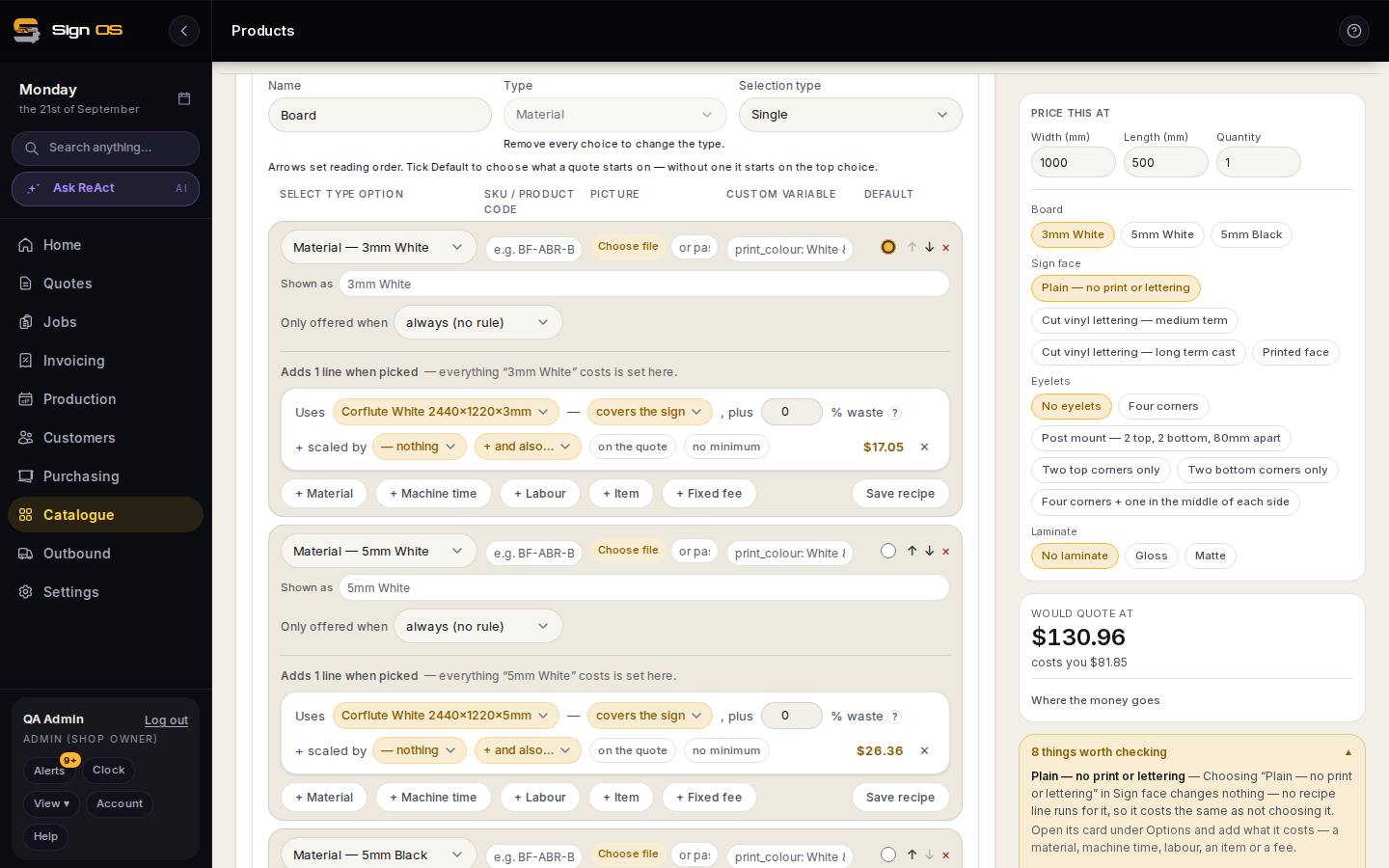
What is on this screen
Each part of the screen above, top to bottom, and what changing it affects.
Options card
- Add option box
- A new box. Order, Name, Type (Material, Machine time, Labour, an item, a fee, or a plain question) and Selection type (Single or Multiple).
- Order
- Where this question is asked. Low numbers are asked first, and that is the order the questions appear on a quote and on your website. A new question starts at the bottom; change the number and press Save box to move it.
- Add choice… · arrows · Default · ×
- Chips in the box, their reading order, which one a quote starts on, and removal.
- Save box · Delete box
- Each box saves on its own.
A chip's card
- SKU / product code · Picture · Custom variable
- The chip's own code, its photograph (shown on the quote and storefront), and values for your own words.
- Shown as
- The words the customer sees for this choice.
- Adds N lines when picked
- Everything this choice costs: + Material, + Machine time, + Labour, + Item, + Fixed fee, each a sentence like the Recipe card's. A chip with no lines adds nothing.
Before you start
- Build the product's recipe first.
- If a choice is a material, machine or bought-in item, add it to the catalogue first so the choice has something to buy.
Step by step
- 1
Open the product and the Options card, then Add option box. Name it (Board, Sign face, Eyelets, Laminate), pick its type — Material, Machine time, Labour, an item, a fee, or a plain question — and whether the quoter picks one or any. Set Order to say where the question is asked; low numbers come first.
- 2
Add choice… for each version. Use the arrows to set the reading order and tick Default for the one a quote starts on; without one it starts on the top choice.
- 3
Open a choice's card. It says Adds N lines when picked — everything that choice costs is set here. Press + Material, + Machine time, + Labour, + Item or + Fixed fee and write the sentence, exactly as on the Recipe card. A choice with no lines adds nothing — fine for 'No laminate' or 'Plain', which are real answers that cost nothing.
Note: A material choice BUYS that material when picked. A 'None' choice is only a label so the estimator can say none.
- 4
On the same card: Shown as (the words the customer sees), a SKU or product code, and a picture. Rules about which choices can go together live in their own card below — see Control which choices can go together.
- 5
Save box. Then check Price this at: switch the choice and watch the price move. If a choice does not move it, its card has no lines yet.
- 6
Recipe lines outside the boxes have a When this runs box too: always, only when one choice is picked, or one copy for each choice in a box with that choice filling the slot. That last one is how one material line covers three substrates.
Tips & gotchas
- Things worth checking, under the price preview, lists every choice that changes nothing. Read it after each save.
- Leave gaps in the Order numbers — 10, 20, 30 — and a new question can be slotted between two without renumbering the lot.
- The Recipe card shows each box as 'Offer a choice … from: …' with 'adds N lines' beside each choice. What each choice costs is edited on its card under Options, not there.
- A box offering two kinds of thing at once (a labour 'none' beside three materials) is flagged 'More than one kind'. It works — leave it, or split it into two boxes.
- Every catalogue picker opens on your own stock under My shop. The All / Shared / My shop toggle at the top widens it to the shared catalogue.