
Files & Sync (desktop app)
Sync job files between your shop drive and Sign OS.
What this is for
Sign OS Sync is a desktop app that keeps a folder per job in step between your shop's drive and Sign OS. Artwork and proofs you save locally show up on the job — no manual uploading.
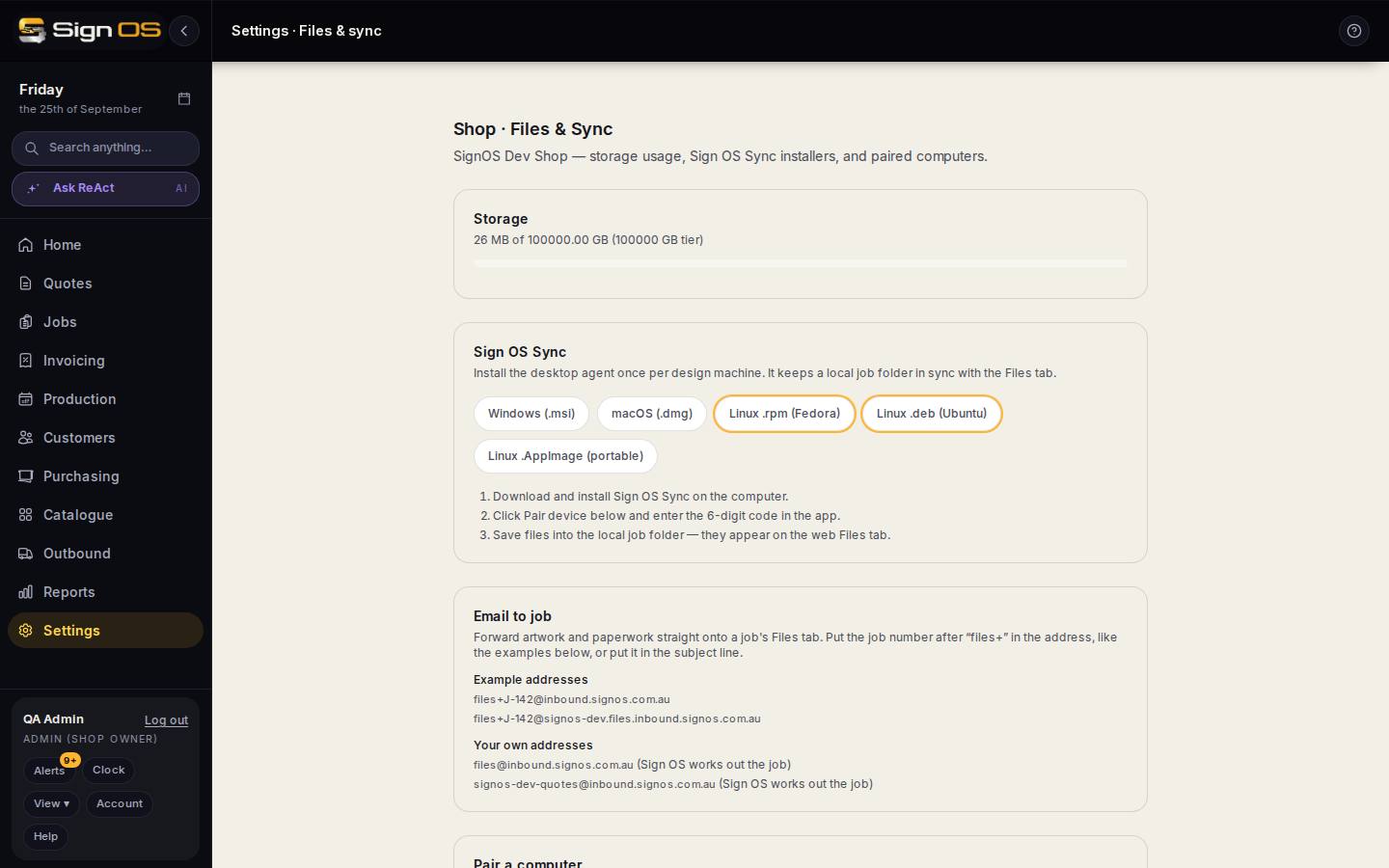
What is on this screen
Each part of the screen above, top to bottom, and what changing it affects.
- Storage
- Usage against the tier.
- Sign OS Sync — Windows · macOS · Linux installers
- The desktop agent, once per design machine.
- Email to job — example addresses · your own addresses
- Forward artwork and paperwork straight onto a job's Files tab: put the job number after files+ in the address, like the examples, or in the subject line. Your own addresses either always go to one job or let Sign OS work out the job.
- Pair a computer — Pair device
- A 6-digit code, valid 10 minutes, entered in the app. Paired computers are listed with a way to unpair.
Before you start
- You are signed in with sync access.
- You are on Windows or Linux — the Mac build is not ready yet.
- You can install the Sign OS Sync desktop app on your machine.
Step by step
- 1
Open Settings → Connections → Files & sync (the page is headed 'Shop · Files & Sync').
- 2
Under 'Sign OS Sync', download and install the desktop app for your computer (Windows .msi, macOS .dmg, or Linux .rpm/.deb/.AppImage).
Note: Windows and Linux are proven on real machines. The Mac build is offered but has had less use; if it misbehaves, stay with the browser upload on the job's Files tab and tell us.
- 3
Under 'Pair a computer', click Pair device to generate a 6-digit code, then enter it in the app.
- 4
Save job files into the local job folder — they appear on that job's Files tab in Sign OS automatically.
- 5
Email to job, on the same page, is the other way in: forward artwork to the shop's files address with the job number after files+ in the address, or in the subject line, and it lands on that job's Files tab.
Tips & gotchas
- Keep working the way your team already does on the shop drive — Sync does the joining-up in the background.
- The installer is not code-signed yet, so Windows will warn you about an unknown publisher. Choose 'More info' then 'Run anyway'.
- Downloading every file as one ZIP is no longer here. It is Your data, at the bottom of Plan & billing.