
What counts against your storage
Which files use your plan's storage, which do not, and what to do when it fills.
What this is for
Every plan includes a file storage allowance. This is what fills it, what does not, and how to get more.
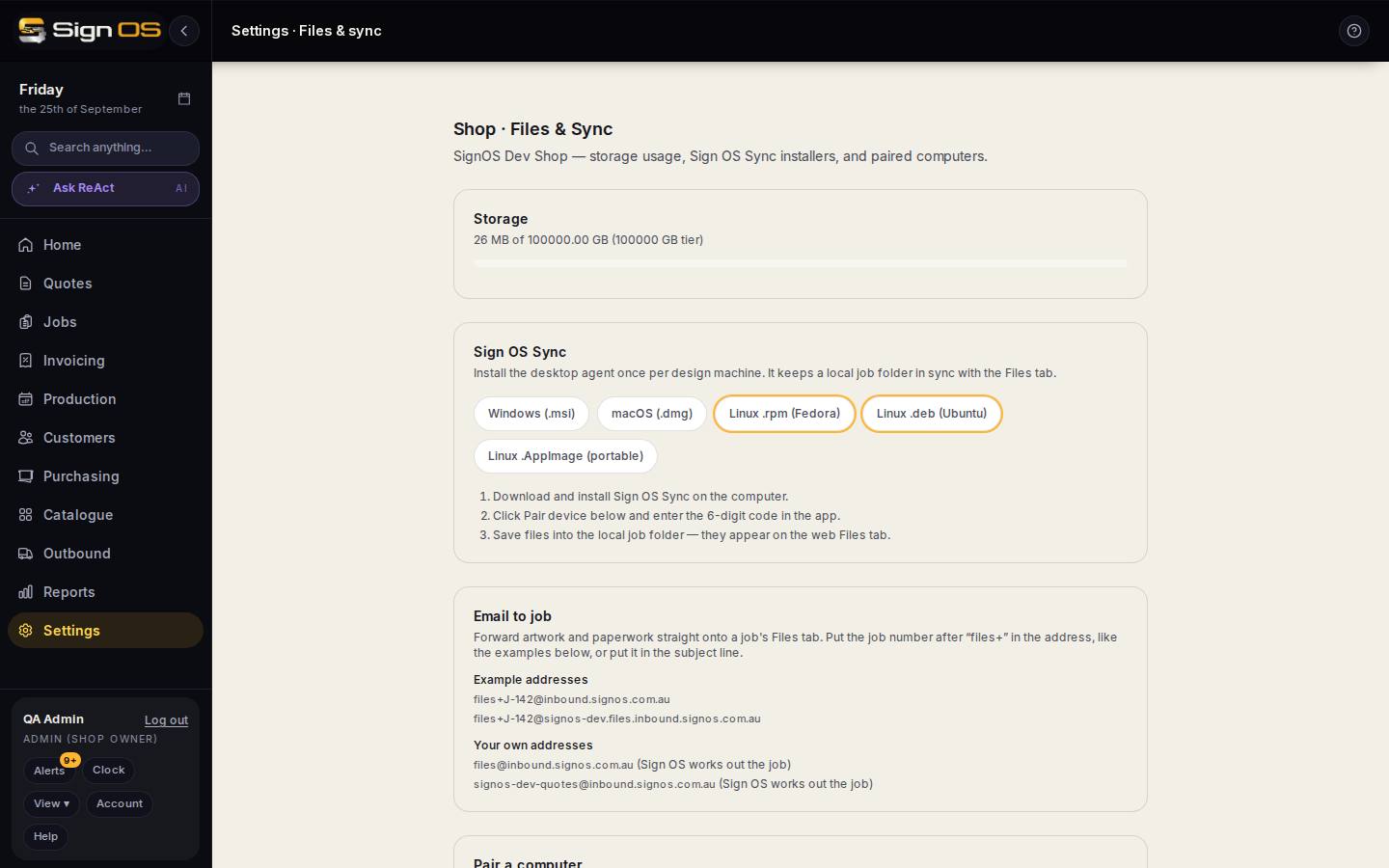
What is on this screen
Each part of the screen above, top to bottom, and what changing it affects.
- Storage
- How much of your plan's storage the shop is using, and the tier's limit. Job files, proofs, product images and uploaded documents count; the shared catalogue's pictures do not.
- Sign OS Sync · Pair a computer
- The desktop app installers and pairing — see Files & Sync.
- Email to job
- The addresses that file forwarded artwork onto a job — see Files & Sync.
Step by step
- 1
Open Settings → Connections → Files & sync to see how much of your allowance is used.
- 2
Understand what counts: artwork and proofs on jobs, photos your installers upload, product and option photographs, your logo and branding, document attachments, and anything synced up from the desktop app.
- 3
And what does not: the global product catalogue's own pictures are ours, not yours, and are not charged to your shop.
- 4
If you are running out, either clear artwork off jobs that finished long ago, or add a storage pack from Settings → Your business → Plan & billing.
Tips & gotchas
- Camera originals are the usual culprit. A phone photo off a site visit can be 8 MB, and fifty of them is half a gigabyte.
- Storage packs are cheap and monthly. If you are close every month, a pack costs less than the time spent tidying up.
- Deleting a job does not immediately free its files — they go when the job's retention period ends.
- Want a copy of everything before you tidy up? Export all files (ZIP) is on Plan & billing, under Your data.