
Pull orders in from your WooCommerce site
Keep selling on your own website; the orders arrive in Sign OS.
What this is for
This is for a website you already have, built on WooCommerce — not the Sign OS online store, which is under Online store. Shopify websites can't be connected yet. Your products keep selling where they always have; Sign OS goes and looks for new orders and brings them in. It only reads. Nothing is installed on your site and your site is never asked to send anything.
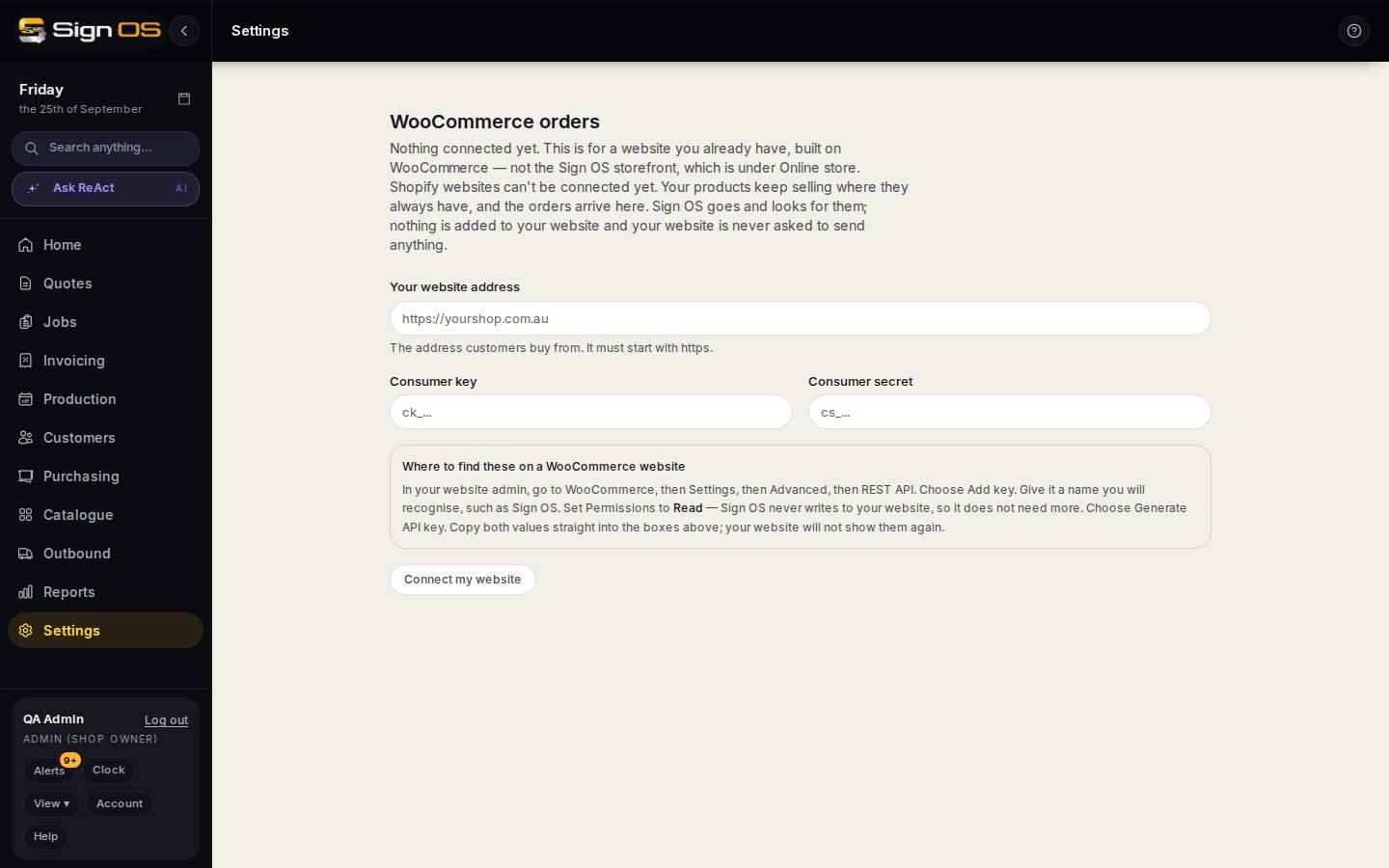
What is on this screen
Each part of the screen above, top to bottom, and what changing it affects.
- Your website address
- Where customers buy; must start with https.
- Consumer key · Consumer secret
- The read-only API key from your WooCommerce admin (WooCommerce → Settings → Advanced → REST API → Add key, Permissions: Read).
- Where to find these on a WooCommerce website
- The steps, on the page.
- Connect my website
- Once connected, new orders arrive under Web orders.
Your products and their prices
- Re-read my product list
- Reads what has changed on your website since the last look: new signs and finishes become quotable, and any price that has moved on your site moves in Sign OS.
- What it reports
- How many products changed, what was added to your catalogue, and how many prices were moved to match your website.
- Prices you set here
- A price you typed in Sign OS is never overwritten. If one of those disagrees with your website, the message says so and leaves it to you.
What an order from this store assumes
- Carrier · Service
- Your WooCommerce store takes the money and an address but never asks how the parcel leaves, so this is the carrier and service written onto every order from it. Carriers are set up under Outbound → Carriers; the page links there if you have none.
- Turnaround
- Business days until it is wanted, skipping weekends and your public holidays. Blank uses each product's own lead time, and a product that states its own lead time always wins.
- Save
- Applies to orders from now on. Anyone can change either on the job afterwards.
Before you start
- You will need admin access to your website to create a read-only API key.
Step by step
- 1
Open Settings → Connections → WooCommerce orders.
- 2
Enter your website address — the one customers buy from. It must start with https.
- 3
On a WooCommerce site: in your website admin go to WooCommerce → Settings → Advanced → REST API and choose Add key. Name it something you will recognise, such as Sign OS. Set Permissions to Read — Sign OS never writes to your website. Generate the key.
- 4
Copy the Consumer key and Consumer secret straight into the boxes. Your website will not show them again, so do it in one go.
- 5
Click Connect my website. New orders then appear under Web orders, where you handle them like any other.
- 6
Press Re-read my product list whenever you change products or prices on your website. New signs and finishes become quotable, and any price that has moved on your site moves in Sign OS, so the office quotes what the website sells.
Note: A price you typed in Sign OS yourself is left alone. If one of those no longer matches your website, the message tells you how many, rather than changing it behind you.
Tips & gotchas
- Read permission is all it needs. If someone gives it Read/Write, take it back to Read.
- Your website is the price list. Change a price there, press Re-read my product list, and quotes and your online store both follow.
- If you want customers to order through a store Sign OS runs for you, that is Online store, a different thing.