
Add your suppliers
Record who you buy from so materials cost from real prices.
What this is for
Suppliers are the businesses you buy materials and hardware from. Adding them lets you attach real prices to your materials, raise purchase orders, and set a default supplier for each thing you stock.
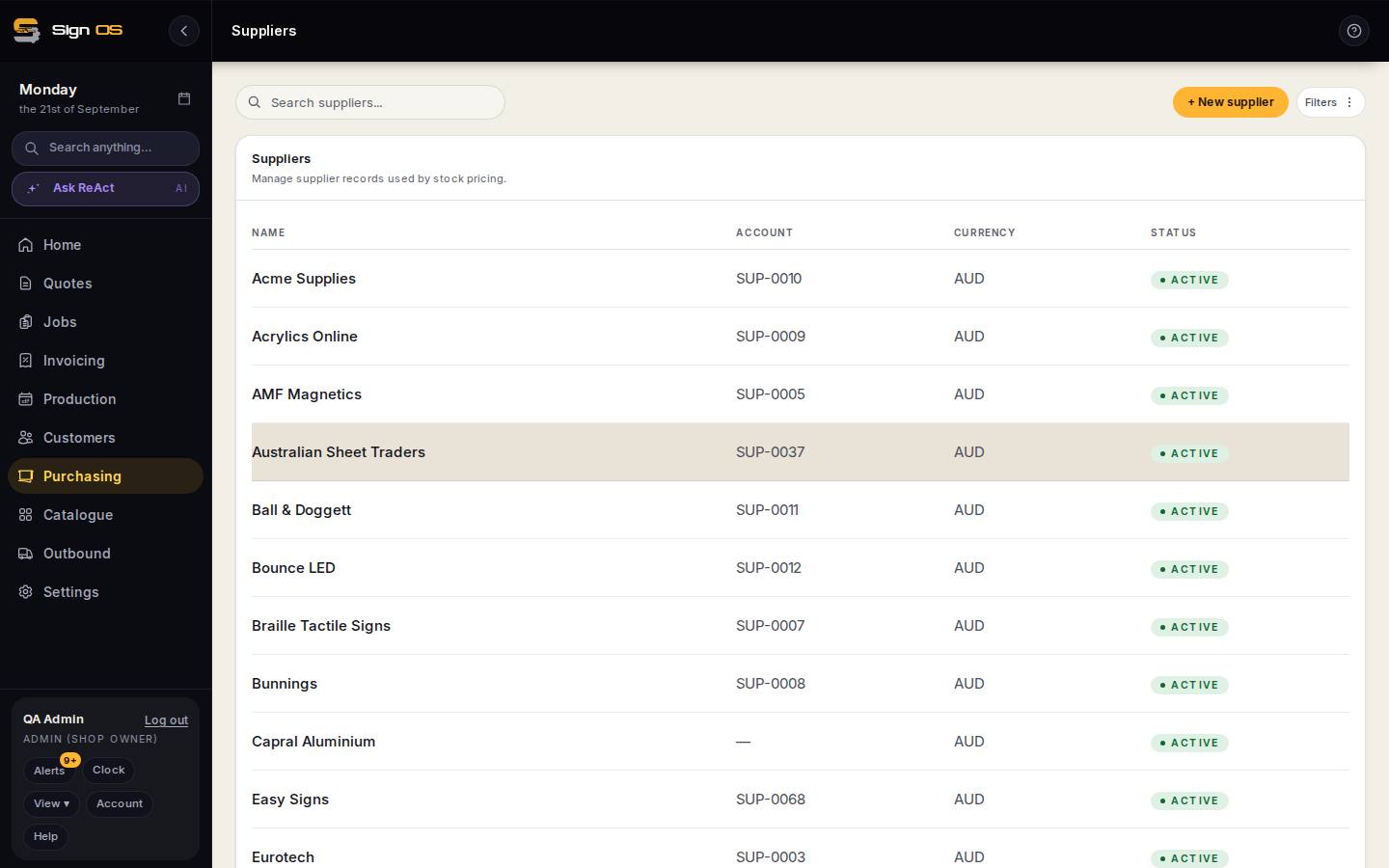
What is on this screen
Each part of the screen above, top to bottom, and what changing it affects.
Suppliers list
- + New supplier
- Name to start; addresses, contacts and a portal login are added on the supplier's page. A new supplier starts on your shop's default credit term, if you have one; change it under Details.
- Filters
- Active, inactive, currency.
- Name · Account · Currency · Status
- Account is the SUP- number. Click a row to open the supplier.
Supplier page
- Details · addresses · contacts
- Where POs are addressed and who gets the email. Details includes Credit terms, the days you get to pay this supplier.
- Materials and items supplied
- Every stock size and item with a supplier quote from this supplier, with the cost you pay. Costs are edited on the material's size card.
- Portal access
- Invite the supplier to price RFQs and keep their prices current — see The supplier portal.
Before you start
- You are signed in with catalogue access.
Step by step
- 1
Open Purchasing → Suppliers from the sidebar.
- 2
Click + New supplier and enter the supplier name. Addresses and contacts are added afterwards on the supplier's detail page.
- 3
Save. You can now link this supplier to the materials and items you buy from them.
- 4
Repeat for each supplier you use regularly.
Tips & gotchas
- You do not need every supplier on day one — add the ones behind your common materials first.
- To load many suppliers at once, use Bulk import instead of typing them in.