
Draft a quote from an enquiry email
Paste a customer's email and get a priced draft quote back.
What this is for
Most enquiries arrive as an email in someone's own words. Paste it in and Sign OS reads it, matches each item to your catalogue, and prices it through your own engine — then hands you a draft to check. It never invents a price: anything it cannot match to your catalogue is left for you.
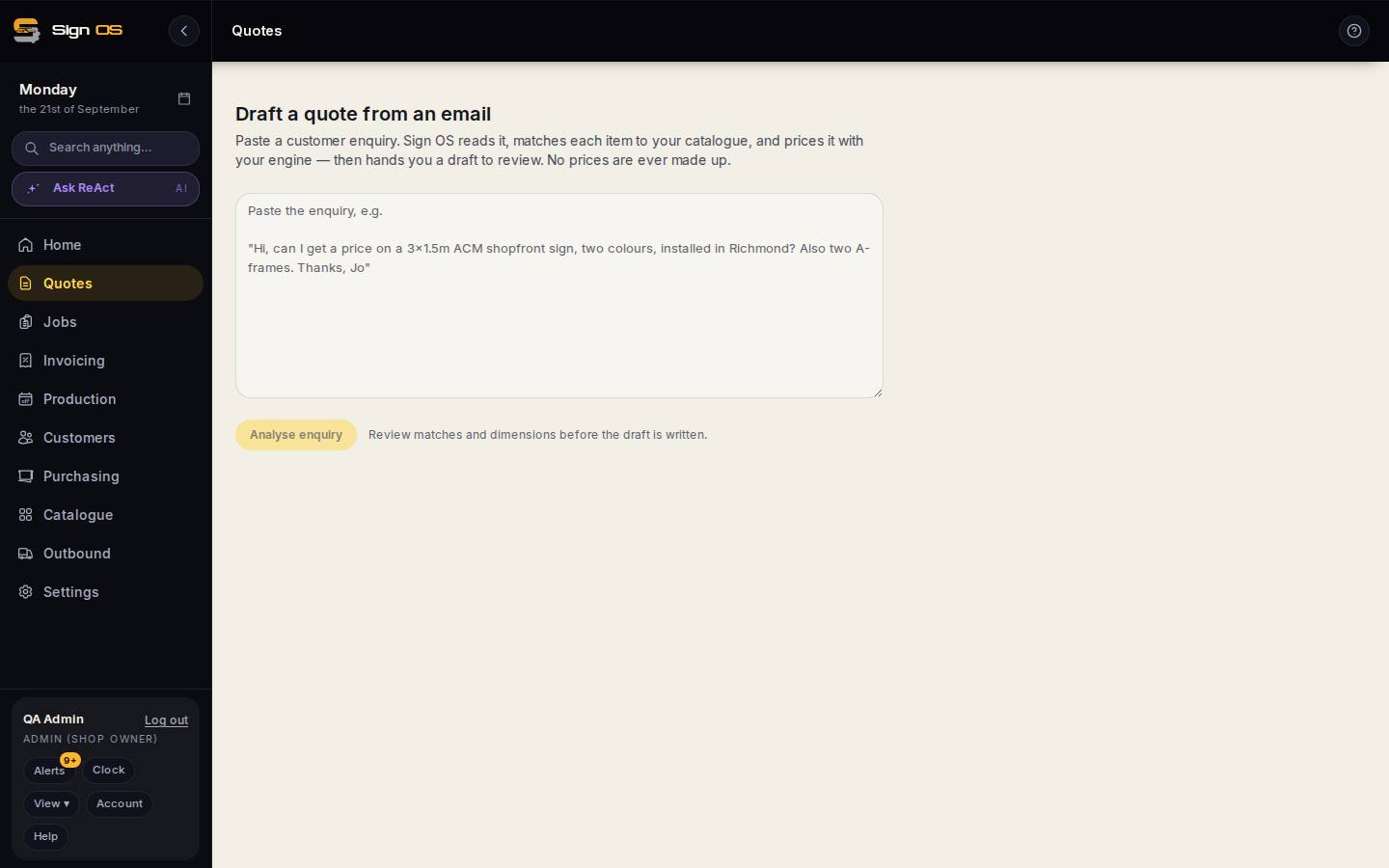
What is on this screen
Each part of the screen above, top to bottom, and what changing it affects.
- The paste box
- The customer's enquiry, signature and all.
- Analyse enquiry
- Reads it, matches each item to your catalogue and prices it with your engine. No prices are ever made up.
- Matches and dimensions
- What it found — customer, items, sizes, quantities — for you to fix before the draft is written.
- Create draft quote
- Lands you in the quote builder with the lines already priced.
Before you start
- You can create quotes, and the AI assistant is switched on for your shop.
Step by step
- 1
Open Quotes and click ✨ From email at the top of the list.
- 2
Paste the customer's enquiry — the whole email is fine, signature and all.
- 3
Click Analyse enquiry. Sign OS pulls out the customer, the items, and the sizes and quantities it can find.
- 4
Check what it found. Fix anything it read wrong or could not match before you go on.
- 5
Click Create draft quote. You land in the normal quote builder with the lines already priced, and finish it the way you always do.
Tips & gotchas
- It is a draft, not a sent quote — nothing goes to the customer until you send it.
- The more of your work lives in the catalogue as real products, the more of an enquiry it can match. Vague one-liners still need a custom line.