
Set who can commit how much
A spending limit per person, so a big order needs a second pair of eyes.
What this is for
Not everyone who can raise an order should be able to commit the shop to any figure. An approval limit lets someone order freely up to a number, and sends anything above it for approval.
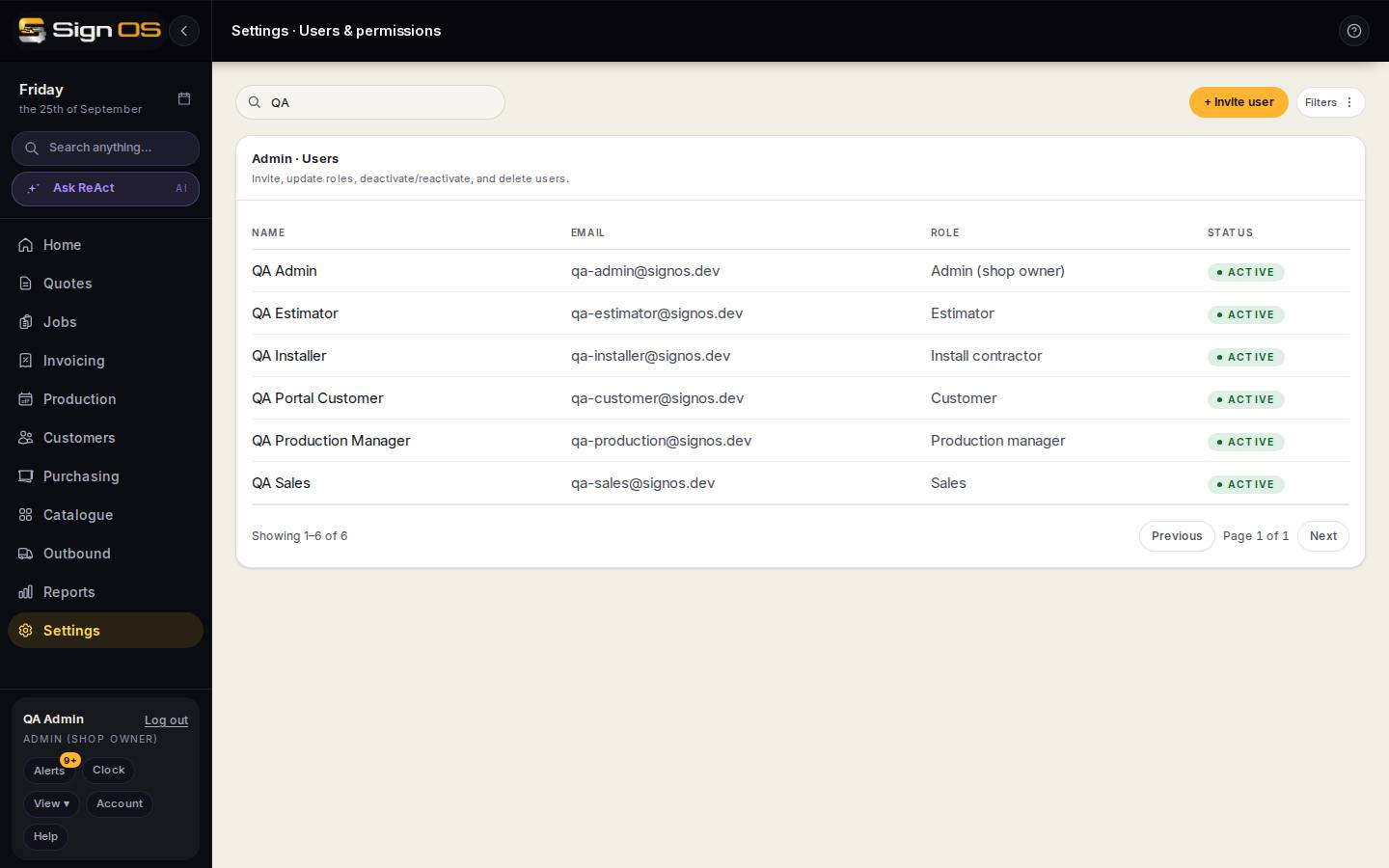
What is on this screen
Each part of the screen above, top to bottom, and what changing it affects.
- Purchase order approval limit (on a user)
- Under the limit, Send goes straight out; over it, sending puts the order into Pending approval.
- Pending approval (on the PO list)
- Orders waiting for someone with the authority to approve.
- PO send requires approval (Purchasing settings)
- The shop-wide switch: every order waits for approval, whatever its value.
Before you start
- Your team members exist under Your team.
Step by step
- 1
Open Settings → Team → Users & permissions, open a team member, and set their purchase order approval limit.
- 2
They raise orders as normal. Under the limit, Send goes straight out.
- 3
Over the limit, sending puts the order into Pending approval instead, and somebody with the authority approves it.
- 4
To require approval on every order regardless of value, tick PO send requires approval on Purchasing → Purchasing settings.
Tips & gotchas
- The limit is checked again when an order is amended, against the new total — not just when it was first sent.
- No limit set means no ceiling. Set one deliberately rather than leaving it blank and assuming.
Related guides
Change or cancel an order you have already sentAmend it, reissue it, or cancel it — and make sure the supplier finds out.Raise & receive a purchase orderOrder materials from a supplier and record what arrives.Set how purchase orders are labelled, signed off and sentExpense categories, approval before an order goes out, cancellation emails and supplier bill syncing.Assign roles & permissionsControl who can see prices, run production, or change settings.