
Set up AI: the Sign OS assistant and your own AI
How careful the ReAct assistant is with changes, and letting an outside AI look things up.
What this is for
The AI page holds two things. The Sign OS assistant (ReAct) is the AI built into Sign OS; here you decide how careful it is before it creates, changes or deletes anything. Connect your own AI is for an assistant you already pay for, such as ChatGPT or Claude, that you want to look things up in your shop.
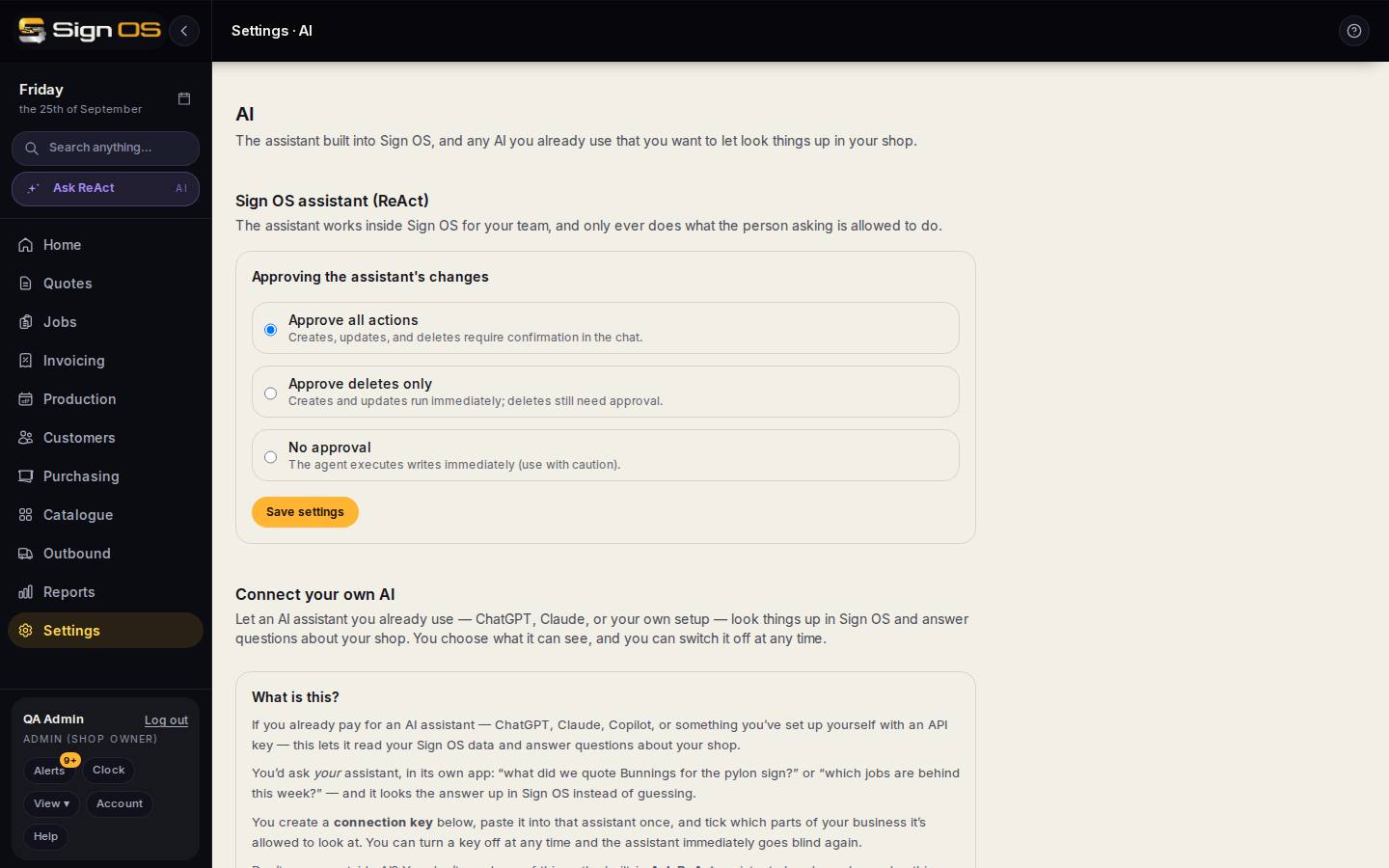
What is on this screen
Each part of the screen above, top to bottom, and what changing it affects.
Sign OS assistant (ReAct)
- Approving the assistant's changes — Approve all actions · Approve deletes only · No approval
- Approve all actions: anything it creates, updates or deletes waits for a yes in the chat. Approve deletes only: creates and updates run straight away, deletes still ask. No approval: it does the lot straight away. It can only ever do what the person asking is allowed to do.
- Save settings
- Applies to everyone's ReAct in your shop.
Connect your own AI
- What is this? · the two notices
- What an outside AI connection is, that it is always read-only, and that whatever you allow is sent to the company that runs that AI.
- Step 1 · Step 2 · Create connection key · Step 3
- Name the key and pick the staff role whose view it gets, tick the areas it may read, create the key (shown once), and copy the address to paste into your AI. Covered step by step in Connect your own AI.
- Your connections · Turn off
- Every key, the role it acts as, what it can read and when it was last used. Turn off blinds that AI at once.
Before you start
- You need the permission to configure the assistant to see its section, and to be an admin to see Connect your own AI.
Step by step
- 1
Open Settings → Connections → AI.
- 2
Under Sign OS assistant (ReAct), choose how much it can do on its own: Approve all actions, Approve deletes only, or No approval.
- 3
Click Save settings. ReAct now works to that rule for your whole team.
- 4
To let ChatGPT, Claude or another assistant read your shop, scroll to Connect your own AI and follow Connect your own AI (ChatGPT, Claude).
Tips & gotchas
- Start careful — leave it on Approve all actions so you confirm each change — then loosen the reins as you trust it.
- The built-in assistant needs nothing from Connect your own AI. That section is only for an outside AI.
- This page used to be two: ReAct AI and Connect your own AI. Both now live here.