
Pull back or fix a proof
Take back a proof you've sent, withdraw an approval, or clear one approved with changes.
What this is for
Sometimes a proof goes out before it should, and sometimes the wrong one gets approved. Neither is a dead end — production stays blocked until it's sorted, which is the point.
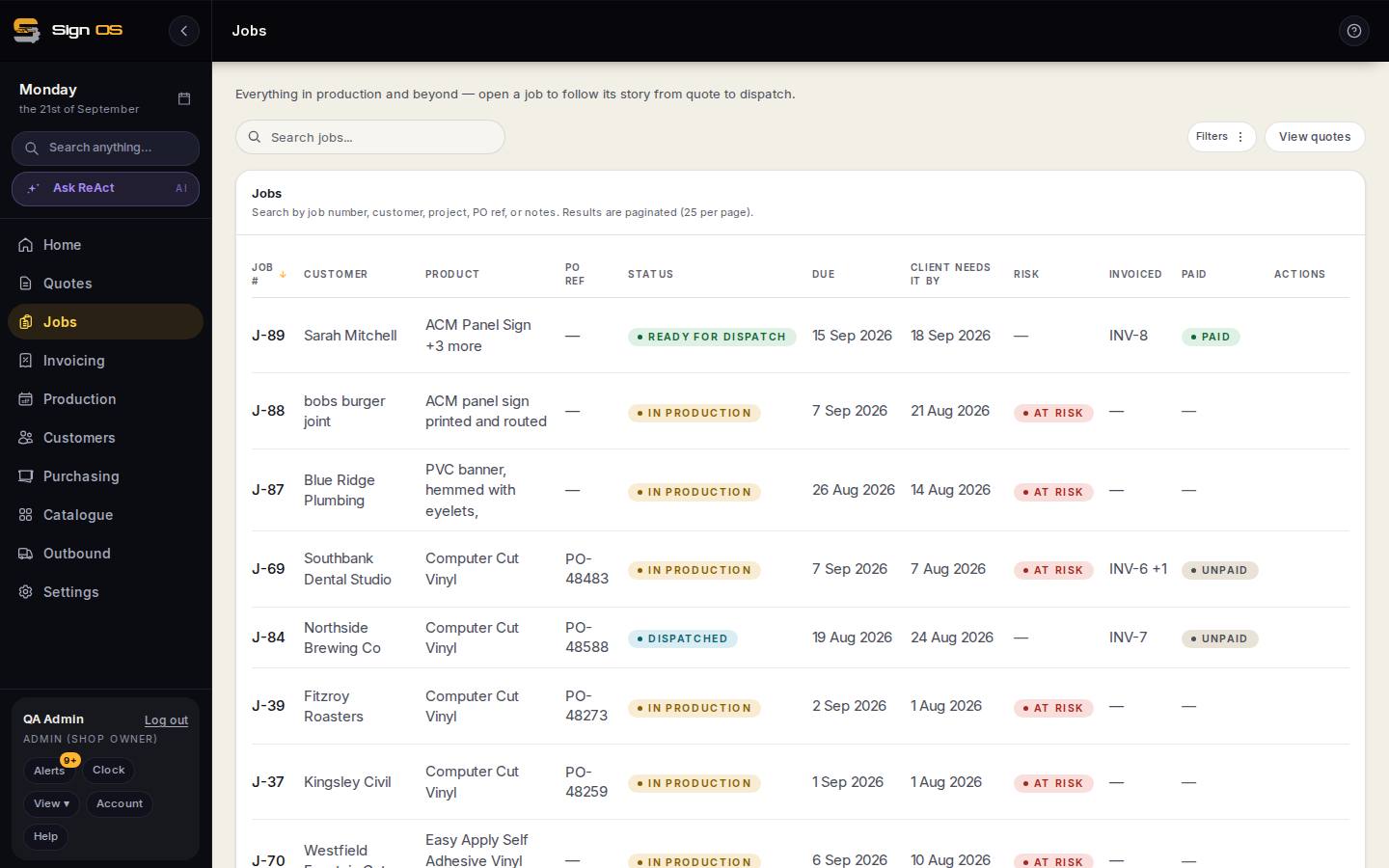
What is on this screen
Each part of the screen above, top to bottom, and what changing it affects.
Job → Approvals tab
- Revoke request
- Pulls a proof back before the customer acts.
- Withdraw approval · reason
- An approval given wrongly goes back to pending and production waits.
- New version
- Supersedes the old; the old link stops counting.
- Approved with changes — notes
- Read and clear before production starts.
Step by step
- 1
Open the job's Approvals tab to see proofs you've sent.
- 2
To pull one back before the customer acts, revoke the request.
- 3
If the customer has already approved and the approval was wrong, withdraw it and say why. The proof goes back to pending and production is blocked again.
- 4
To replace artwork, upload a new version — the old one is superseded automatically and stops counting.
- 5
If the customer approved with changes, read their notes and clear it there before production starts.
Tips & gotchas
- Withdrawing an approval does not erase the customer's sign-off. Their signed decision stays on the record; what changes is that you are no longer acting on it.
- A withdrawal needs a reason, and it shows on the job's activity next to the original approval.
- A rejected proof blocks production until a new version is approved.
- Superseded proofs are ignored by the production gate, so only the current version matters.
- If a deposit was required with the proof, production stays held until that's paid too.