
Add your team members
Invite staff by email so they get their own login.
What this is for
Give everyone in the shop their own login. Each person gets an emailed invite, sets their own password, and appears in your team list — so you always know who did what.
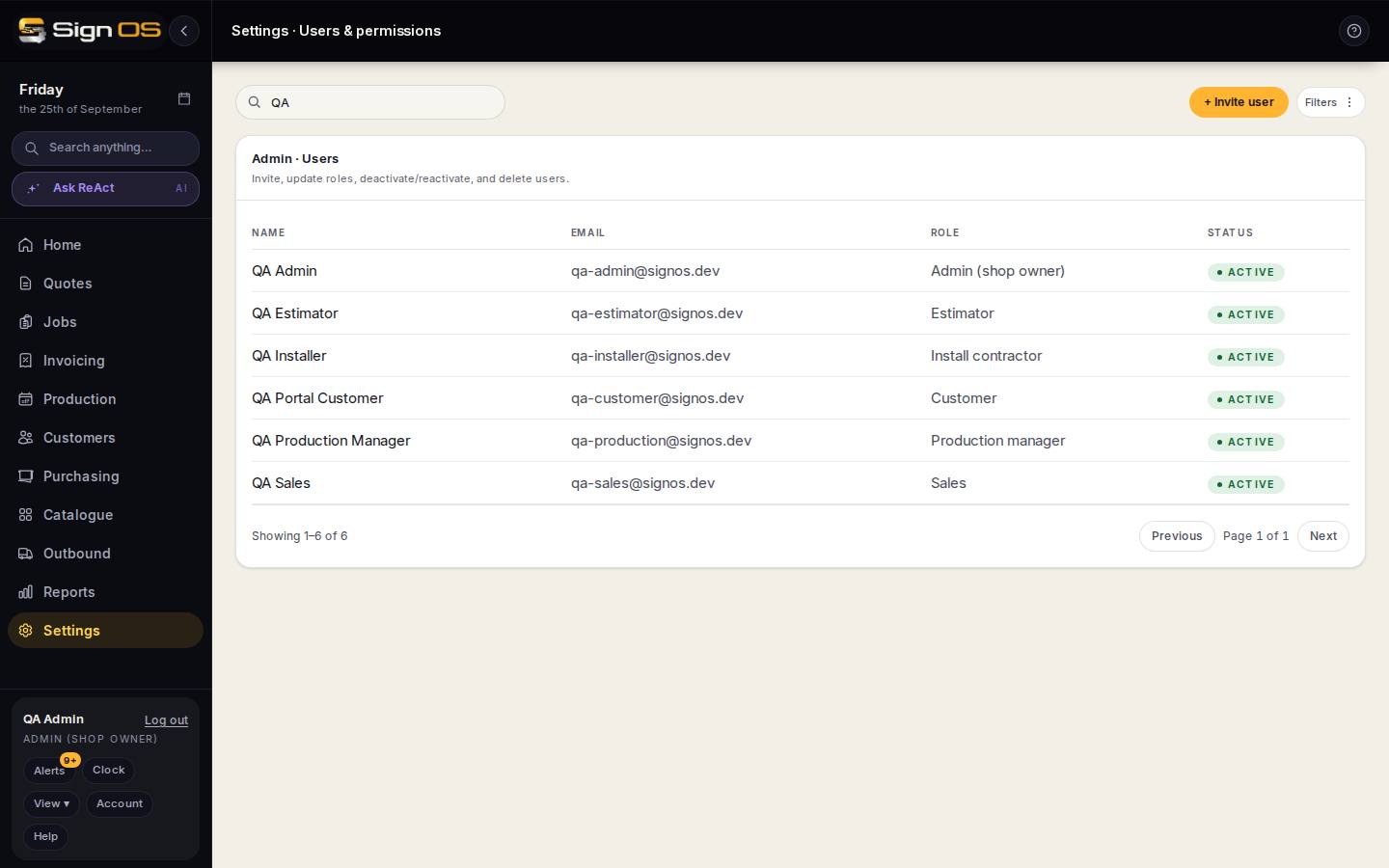
What is on this screen
Each part of the screen above, top to bottom, and what changing it affects.
Users list
- Search users… · Filters
- Find a person by name or email; Filters narrows by role or status.
- + Invite user
- Opens the invite dialog: their email and a role. Send invite emails them a link; they set their own name and password.
- Name · Email · Role · Status
- Every login on the shop. Status is Active, Pending invite (never accepted) or Inactive (deactivated). Click a row to edit.
Before you start
- You are signed in with the Admin (shop owner) role.
- Have your staff email addresses handy.
Step by step
- 1
Go to Settings → Team → Users & permissions.
- 2
Choose + Invite user.
- 3
Enter their email and pick their role (see 'Assign roles & permissions'). They set their own name when they accept.
- 4
Choose Send invite. They receive an email, click the link, and set their own name and password.
- 5
Until they accept, they show in the list as Pending invite. If they never got it, delete that row and invite them again.
Tips & gotchas
- Invite people with the role they need, not a bigger one — you can always change it later.
- When someone leaves, deactivate their login here rather than deleting it, so their history stays intact.