
Warranty check-ups, care instructions and review asks
Every finished job earns a follow-up without anyone remembering to do it.
What this is for
A finished sign is the start of the next job with that customer, not the end of this one. The After the job tab on Follow-ups sets three things once: how long your warranty runs (you get a reminder to book a check-up before it expires), the care instructions the customer receives at handover, and whether each new customer is asked for a review after their first order.
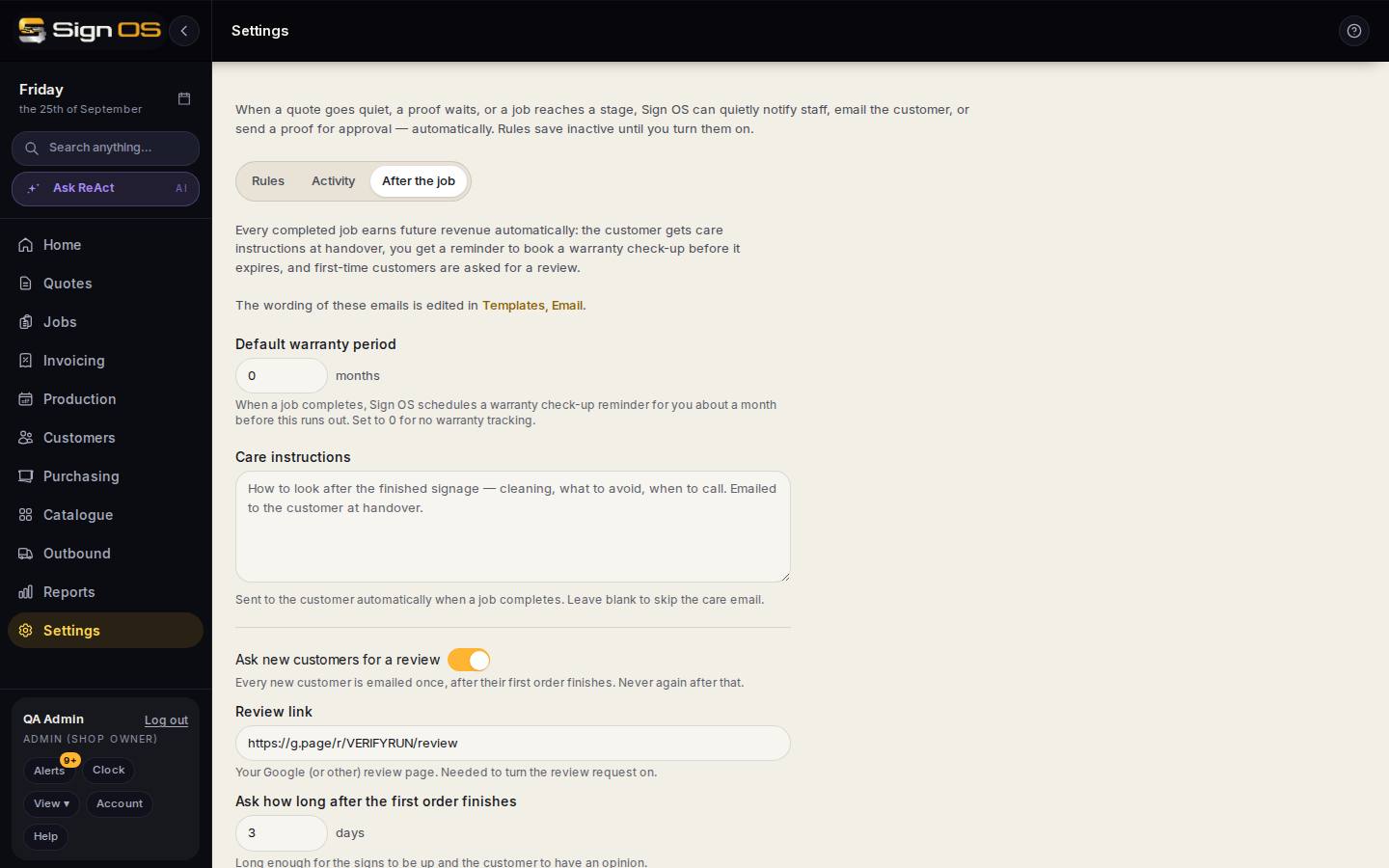
What is on this screen
Each part of the screen above, top to bottom, and what changing it affects.
After the job tab
- Templates, Email link
- The wording of the care email and the review request is edited in Templates, Email, not here.
- Default warranty period (months)
- When a job completes, Sign OS schedules a warranty check-up reminder for you about a month before this runs out. 0 turns warranty tracking off.
- Care instructions
- Emailed to the customer automatically when a job completes. Blank skips the care email.
- Ask new customers for a review
- The one on/off switch for the review request. On, every new customer is emailed once, after their first order finishes, and never again. Off, nobody is asked and your link is kept for later.
- Review link
- Your Google (or other) review page. You need one before the switch will turn on.
- Ask how long after the first order finishes (days)
- Long enough for the signs to be up and the customer to have an opinion.
- Save
- Applies to jobs completed from now on. A review ask already queued is cancelled if the switch is off or the link cleared when it falls due.
Before you start
- You are signed in as an admin. The After the job tab is not shown to anyone else.
Step by step
- 1
Open Settings → Customers & follow-ups → Follow-ups and choose the After the job tab.
- 2
Set the default warranty period in months. About a month before it runs out, Sign OS schedules a reminder for you to book a warranty check-up. Set it to 0 if you do not want warranty tracking.
- 3
Write your care instructions. They are emailed to the customer automatically when a job completes. Leave it blank to skip the care email.
- 4
To ask for reviews, paste your Google (or other) review page link, then switch on Ask new customers for a review.
- 5
Set how many days after the first order finishes to ask, then Save.
Tips & gotchas
- Read the review email once under Settings → Look & paperwork → Templates → Email → Review request before you switch it on. That screen no longer has its own on/off switch; it says the request is turned on or off here.
- Care instructions are worth writing well. A customer who cleans a printed panel with the wrong solvent blames the sign, not the solvent.