
Tune your calculators
The small calculators products use — rename them, adjust their defaults, or build your own.
What this is for
A calculator asks a few questions, works out a number, and your recipes price from that number. Some are shared — marked Global — and can be renamed and have their defaults adjusted, but their questions, answers and rules belong to every shop. Ones marked Shop are yours: you can take those apart or build new ones.
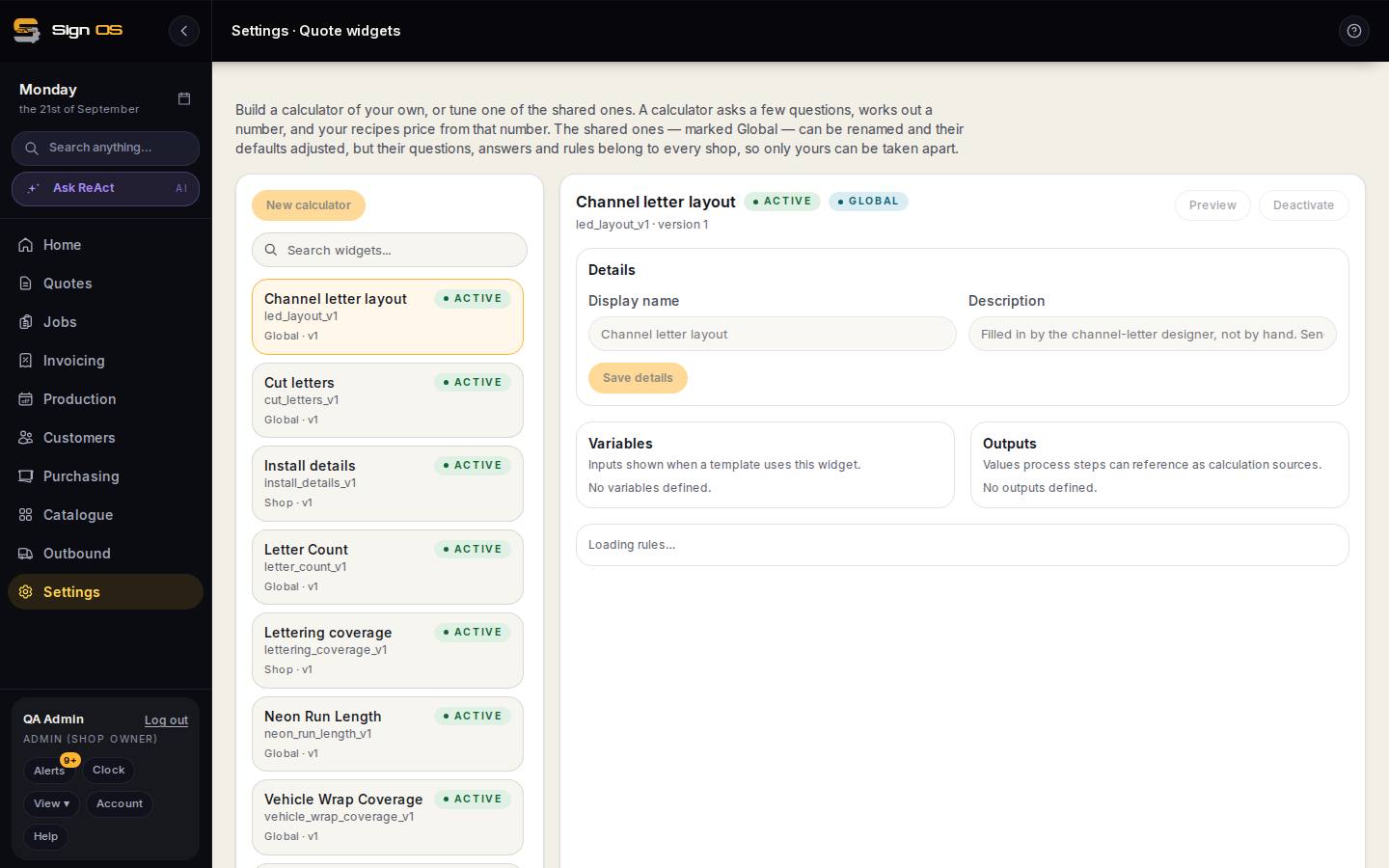
What is on this screen
Each part of the screen above, top to bottom, and what changing it affects.
- New calculator
- Build one of your own.
- The list — name · key · ACTIVE / INACTIVE · Global / Shop · version
- Every calculator and whether products can use it.
- Preview · Activate / Deactivate
- See it as it appears on a quote; switch it on or off.
- Details — Display name · Description · Save details
- What it is called.
- Variables · Outputs — -1 / +1
- The inputs a product shows and the values recipe lines can price from, with their defaults.
Step by step
- 1
Open Catalogue → Quote widgets. The list shows each calculator, whether it is active, and Global or Shop.
- 2
Click one. Preview shows how it looks on a quote; Activate or Deactivate controls whether products can use it.
- 3
Under Details, change the Display name or Description and Save details.
- 4
Variables are the inputs shown when a product uses it; Outputs are the values recipe lines can price from. Nudge a default with -1 / +1.
- 5
New calculator builds one of your own: its questions, its answers and the rule that turns them into a number.
Tips & gotchas
- Which products use a calculator is decided on the product, under Extras — this screen only defines the calculators.