
See everything that happened to an order
Who sent it, what changed, what the supplier said, and when.
What this is for
“Who changed this and when?” used to have no answer. Every purchase order now keeps a history — raised, sent, amended, received, checked, cancelled — including the supplier's own answers from their link.
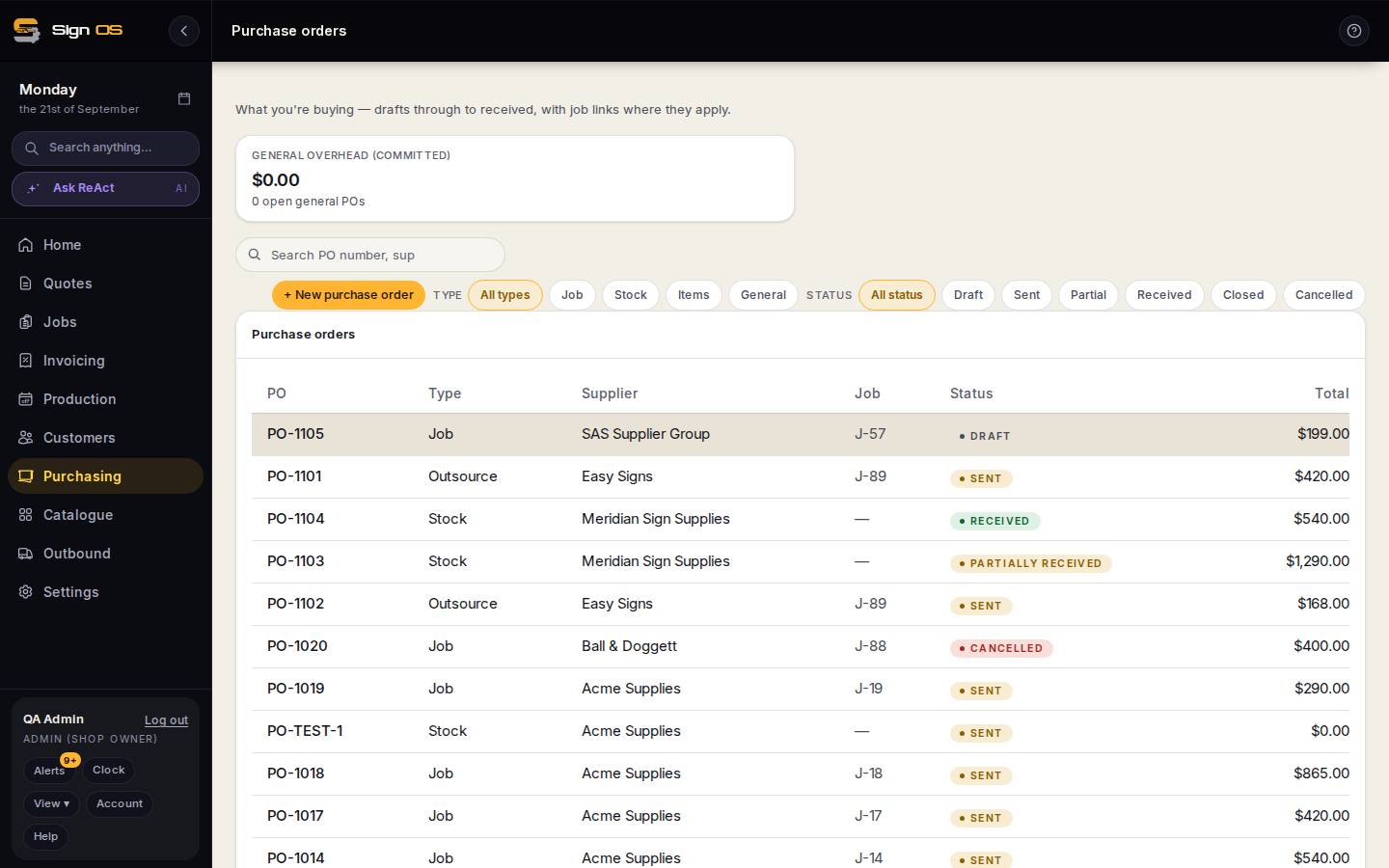
What is on this screen
Each part of the screen above, top to bottom, and what changing it affects.
History on a purchase order
- Entries
- What happened, who did it, when, in plain English.
- as the supplier · automatic
- Answers from the supplier's link, and things Sign OS did on its own such as sending an email.
- Amendments
- What actually changed: this line from 10 to 14, that price from $8 to $9.
Step by step
- 1
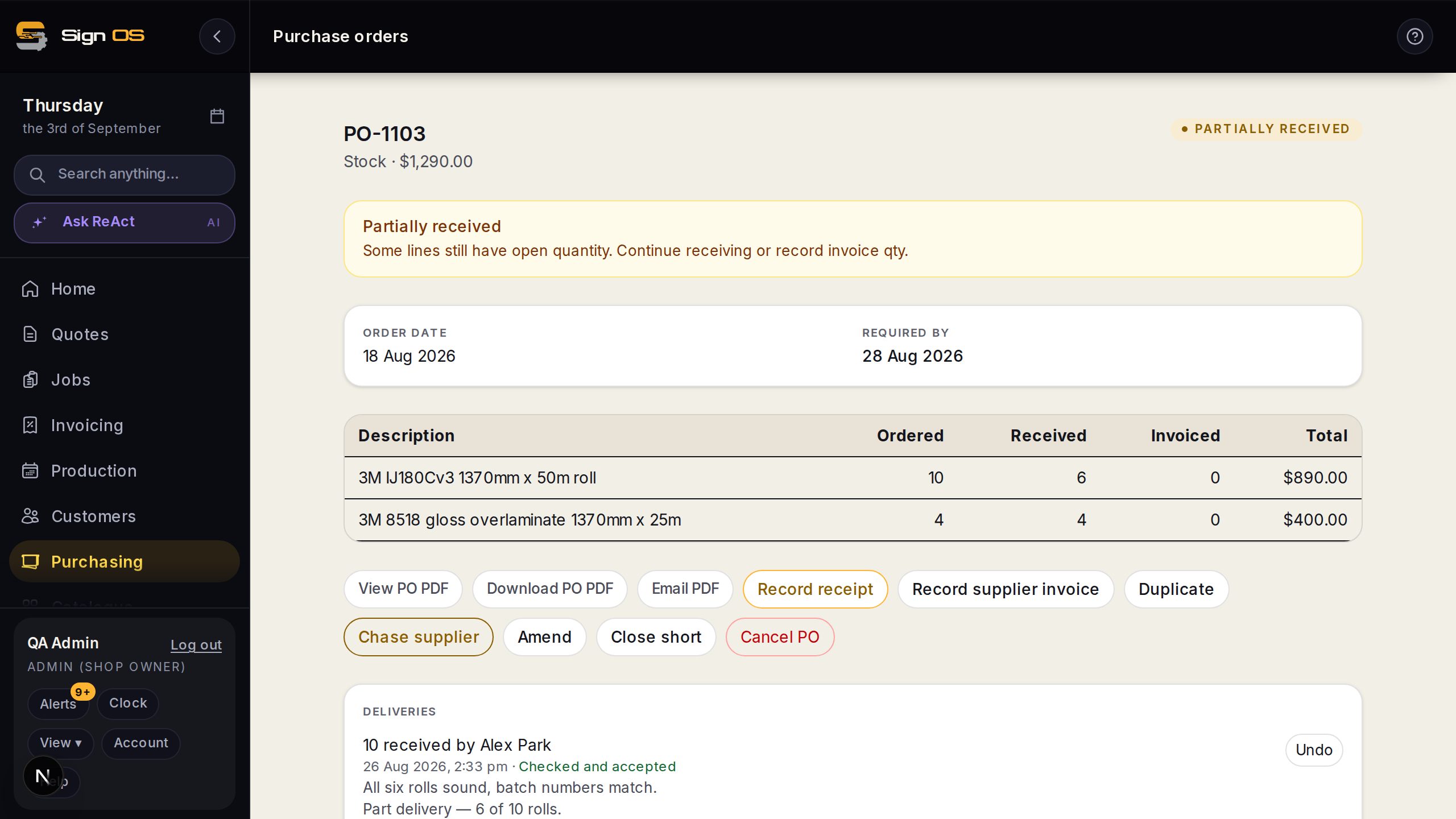
Open any purchase order and scroll to its history.
- 2
Each entry says what happened, who did it, and when — in plain English rather than field names.
- 3
Entries marked as the supplier came from their link. Entries marked automatic were done by Sign OS, such as an email going out.
- 4
Amendments list what actually changed: this line went from 10 to 14, that price went from $8 to $9.
Tips & gotchas
- The history is never edited or deleted, only added to. That is the point of it.
- It records emails that failed as well as ones that sent — “could not email orders@supplier.com.au” is the useful line, not silence.
Related guides
Change or cancel an order you have already sentAmend it, reissue it, or cancel it — and make sure the supplier finds out.Let a supplier confirm an order without an accountA private link where the supplier acknowledges, promises a date, and picks up the artwork.Raise & receive a purchase orderOrder materials from a supplier and record what arrives.