
The installer portal
What your install contractors see and do when they log in.
What this is for
The installer portal is the contractor's own view — the jobs you assign them, with the site details they need, plus their own profile, rates and compliance documents. It keeps them in the loop without giving away the rest of your shop.
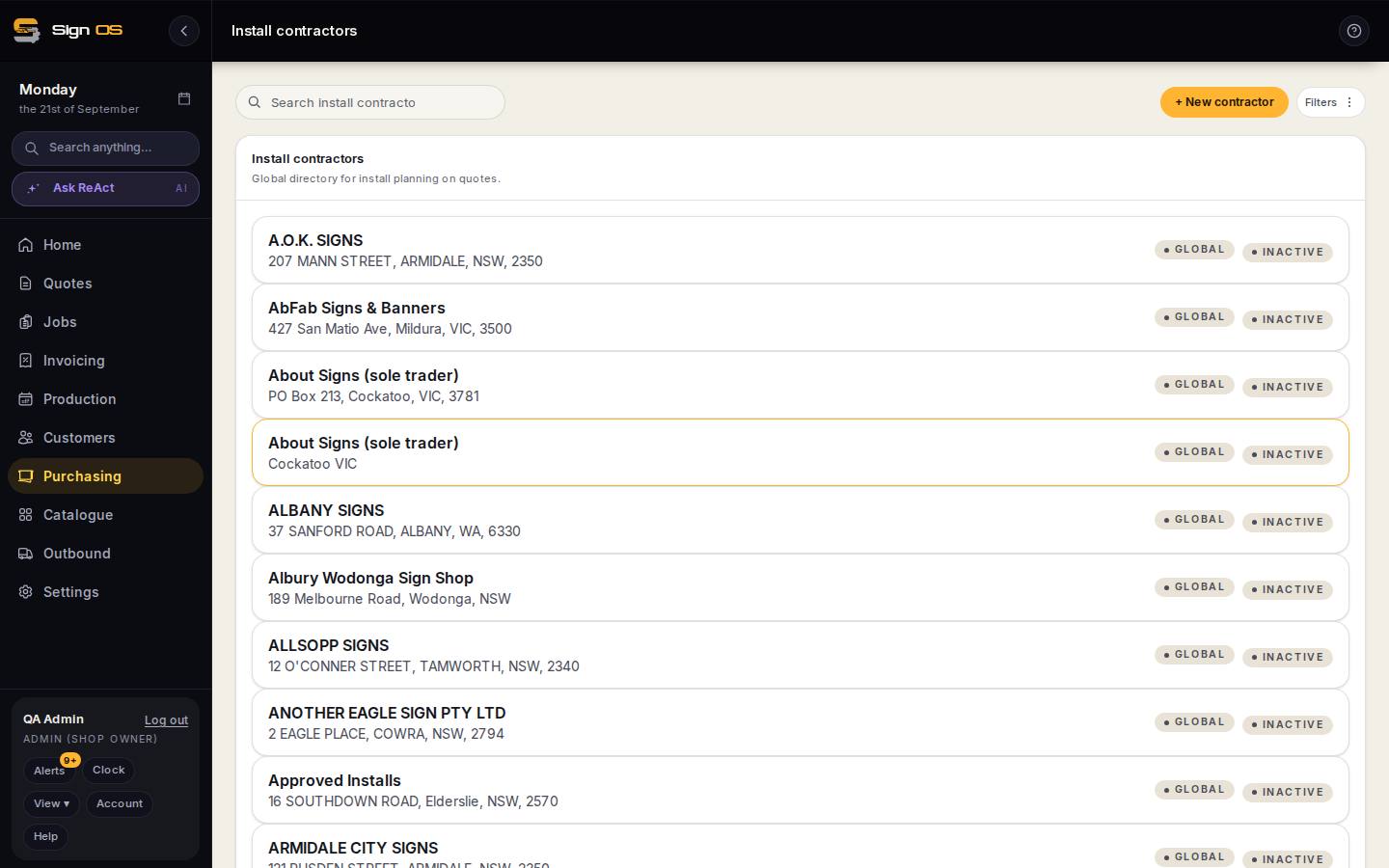
What is on this screen
Each part of the screen above, top to bottom, and what changing it affects.
What the installer sees
- Your jobs
- Only the jobs assigned to them, with site address and install notes.
- Take or choose a photo · note · Save evidence
- Site-survey or completion evidence sent to the shop; queued on the phone when out of range.
- Profile · Rates · Contacts on file · compliance documents
- Kept up to date by them.
- Preferred shops
- Which shops they work with.
Step by step
- 1
Open the contractor in Install contractors and send them a portal invite; they receive a login.
- 2
They sign in and see Your jobs — only the jobs assigned to them, with site address and install notes.
- 3
On a job they Take or choose a photo, write a note and Save evidence — site-survey or completion photos go straight back to the shop, and if they are out of range it saves on the phone and sends once they are back online.
- 4
They can also keep their profile, rates and compliance documents up to date, and choose which shops they work with.
Tips & gotchas
- The portal is locked to their own work — a contractor login can never reach the staff app or your pricing.