
Connect Xero or QuickBooks
Sync invoices and payments to your accounting software.
What this is for
Connecting your accounting software means invoices flow out of Sign OS into your books and payment status comes back — no double entry, and your operational and financial records stay in step. It is an invoice connection: a customer is created in your books the first time you invoice them, but your existing customers and suppliers do not come across on their own, and changing a customer here does not change them in Xero. Load those with Bulk import instead. Xero and QuickBooks Online work today. MYOB is written and tested but not switched on yet.
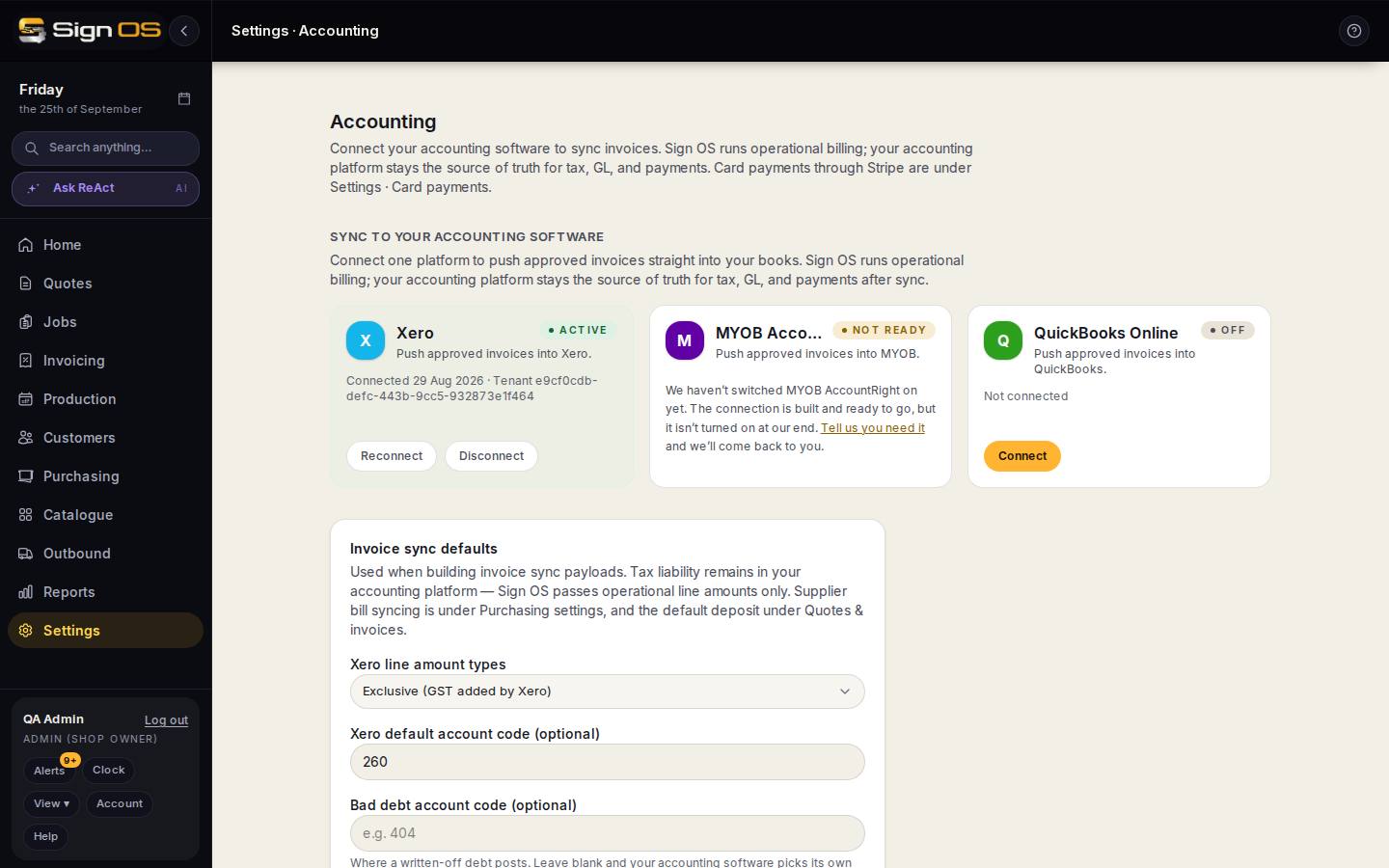
What is on this screen
Each part of the screen above, top to bottom, and what changing it affects.
Sync to your accounting software
- Xero · MYOB AccountRight · QuickBooks Online — Connect · Reconnect · Disconnect
- One platform receives approved invoices. The card shows Active, Off, After trial (free trials can't start a new connection; a plan switches it on) or Not ready (MYOB is built but not switched on).
- Connected message
- When you come back from authorising Xero, QuickBooks or MYOB, a green message such as 'QuickBooks connected successfully.' shows above the cards. If the connection didn't go through, a red message says why instead, and the card stays Off.
Invoice sync defaults
- Xero line amount types
- Exclusive (GST added by Xero) or inclusive.
- Xero default account code · Bad debt account code
- Where invoice lines post when a product has none, and where a written-off debt posts. Leave blank to let your accounting software decide.
- MYOB GST tax code
- The tax code MYOB invoices use, once MYOB is switched on.
- Save settings
- Applies from the next invoice.
Developer & webhooks
- OAuth redirect URI · Xero webhook signing key
- Only needed when a platform asks for them during connection.
Before you start
- You are signed in as an admin.
- You have your accounting login handy to authorise the connection.
- Your shop is on a paid plan. Free trials see the rest of this screen, but the Connect button waits until you subscribe.
Step by step
- 1
Open Settings → Connections → Accounting (Xero · MYOB · QuickBooks).
- 2
Under 'Sync to your accounting software', find the card for your platform — Xero or QuickBooks Online — and click Connect. Authorise with your accounting login. You land back here with a green 'connected successfully' message.
Note: The MYOB AccountRight card is on the page, but connecting it will not work yet. MYOB charges for the developer access the connection needs, so it stays switched off until we buy in. Talk to us before planning around it.
- 3
Set your 'Invoice sync defaults' (Xero line amount types, optional default and bad debt account codes) and click Save settings.
- 4
Done. Approved invoices you raise in Sign OS now sync across, the card shows Active, and payments recorded in your accounting software come back and mark the invoice paid here.
Tips & gotchas
- Set your 'Invoice sync defaults' carefully once — it is what keeps your bookkeeper happy afterwards.
- If a sync looks off, this is the first place to check — the card shows Active or Off, and Reconnect / Disconnect sit right on it.
- Sign OS is not your general ledger. It raises and syncs invoices; your accountant keeps working in Xero or QuickBooks.
- Connecting does not bring your customers or suppliers over. Export them from Xero to a spreadsheet and load them with Bulk import — it takes a few minutes and you only do it once.
- A customer you invoice is created in your books if they are not there already, matched on their email address. After that, contact details are kept in each system on its own: edit them in both, or treat your accounting software as the record.
- Three things that used to be on this page have moved: taking card payments through Stripe is Card payments, the default deposit is on Quotes & invoices, and supplier bill syncing is on Purchasing settings.